
Planning a website sitemap and navigation for a business site redesign
How to decide which pages your business site needs, group them into a menu people and crawlers can follow, and keep navigation consistent.
- Nº
- 23
- Published
- Read
- 12 min
- Category
- Notes
- Written by
- Revylio
Planning a website sitemap and navigation: the short answer
Planning a website sitemap and navigation means three decisions, made before any design starts. You decide which pages the site needs. You group them into a small number of levels. You fix one menu order that repeats on every page. Visitors, keyboard and screen-reader users and search engine crawlers can then reach the pages that matter.
A sitemap, in the planning sense, is a plan of the pages a website contains and how they relate to each other. Navigation is the set of menus and links a visitor uses to move between those pages. The sitemap decides what exists. The navigation decides what people see first and how they get there.
A planning sitemap does more than list pages. The Interaction Design Foundation says it shows how pages connect, identifies gaps and prioritises content. It also works as a plan for the project, because every page in it is a page someone has to write, design and build.
This guide covers the kinds of sitemap you will hear about and how to choose pages. It also covers how deep the structure should go, a worked spreadsheet example and the accessibility rule on consistent navigation. It ends with how crawlers find your pages, the checks to run before design starts, and what changes for a European business.
Three kinds of sitemap, and which one you plan first
The sitemap you plan first is the planning sitemap, a document for your project team. Two other kinds share the name, and mixing them up causes confusion in meetings. The HTML sitemap and the XML sitemap are both built later, from the plan.
The three kinds serve different readers:
| Kind of sitemap | Who it is for | What it does | When you make it |
|---|---|---|---|
| Planning (UX) sitemap | Your team, including people without a design background | Sets which pages exist, their levels and their priority | Before design starts |
| HTML sitemap | Human visitors | A page listing the site's structure, used when menus and site search have not helped | During the build |
| XML sitemap | Search engine crawlers | A file listing the URLs you care about, with their relationships and priority | Generated by the CMS during the build and kept up to date |
The Interaction Design Foundation stresses that a planning sitemap is a collaborative tool. People from other teams, including stakeholders with non-design backgrounds, can refer to it. A planning sitemap can be a spreadsheet, a diagram or a flowchart.
The HTML and XML versions come from the plan. According to 1dea's explainer, HTML sitemaps are for human visitors and XML sitemaps are for search engines. Get the planning sitemap right and both follow from it.
Choosing which pages a business site needs
The pages a business site needs follow from two inputs: what the site must achieve and what visitors come to do. Work in a fixed order. Define the goals and user needs, take stock of the existing content, then organise it into a hierarchy.
Write the goals down before you open the spreadsheet. A goal such as "more enquiries for payroll services" tells you that payroll needs its own page and a clear route to contact. Our website brief template covers how to set those goals with your team.
For a redesign, start from the pages you already have. A content audit reviews existing pages for gaps and redundancies. Our guide to running a content audit before a website redesign explains how to do it. Bring its keep, merge and remove decisions straight into the sitemap.
Watch for pages that say the same thing. Google's SEO Starter Guide says duplicate content is not a violation of its spam policies, but it can be a bad user experience. Two near-identical service pages also split your visitors between two menu items. Merge them into one page with one place in the structure.
Mark priority as you go. A Priority column in the sitemap shows the must-have pages for launch when the deadline is tight, and lets everything else follow later.
Grouping pages into levels: flat or deep structure
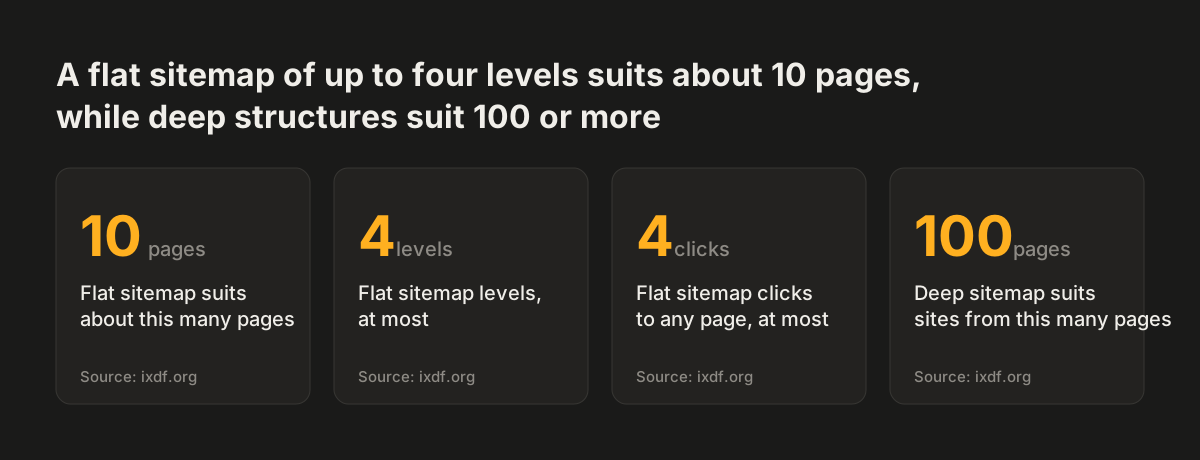
Most business sites suit a flat structure with few levels. The Interaction Design Foundation describes a flat sitemap as having up to four hierarchical levels. It suits smaller websites of about 10 pages, where any page is reachable in four clicks or fewer.
A deep structure suits larger sites. The same source says deep sitemaps are best for sites with 100 or more pages, such as e-commerce platforms. These call for extra features like breadcrumbs, the trail of links showing where a page sits in the hierarchy.
The levels themselves are simple to define. Level 1 pages are the ones you would normally see in the navigation on every page. Level 2 pages are children of a Level 1 page. Level 3 pages sit under Level 2, and so on.
A practical test is whether each Level 1 label means something to a first-time visitor. "Services", "About" and "Contact" do. An internal department name usually does not.
Site size also matters for search engines, but only at scale. Google's SEO Starter Guide says that above a few thousand URLs, how you organise content may affect how Google crawls and indexes the site. Below that, organise for people first.
Source: ixdf.org
A worked example: a sitemap spreadsheet for a small services firm
A spreadsheet is the easiest planning sitemap for a small business. The example below is for an imaginary accountancy practice. It uses four working columns, with a numbering scheme from the Interaction Design Foundation in which pages under page 1 become 1.1, 1.2, 1.3.
| Page no. | Level 1 | Level 2 | Priority | Analytics tag | Content plan |
|---|---|---|---|---|---|
| 0 | Home | Must have | home | New copy | |
| 1 | Services | Must have | services | Navigation page, no content of its own | |
| 1.1 | Services | Bookkeeping | Must have | services | Existing page /bookkeeping |
| 1.2 | Services | Payroll | Must have | services | Client document payroll-copy.docx |
| 2 | About | Must have | about | Existing page /about-us | |
| 2.1 | About | Team | After launch | about | New copy |
| 3 | Contact | Must have | contact | Existing page /contact |
Each column does one job:
- Page no. gives every page a unique reference, because pages in different sections often have similar names.
- Priority separates launch pages from later ones.
- Analytics tag groups pages by theme so you can build Google Analytics dashboards per theme. Our post on measuring what a website brings in shows what to do with those reports.
- Content plan holds either the file name of a supplied document or a link to the existing page the content comes from.
"Services" here is a navigation page: a page with no content of its own that signposts the pages in its branch. It often helps to write the deepest pages first. Level 2 can then summarise Level 3, and Level 1 can summarise Level 2.
Top navigation, homepage and sitemap are three separate decisions
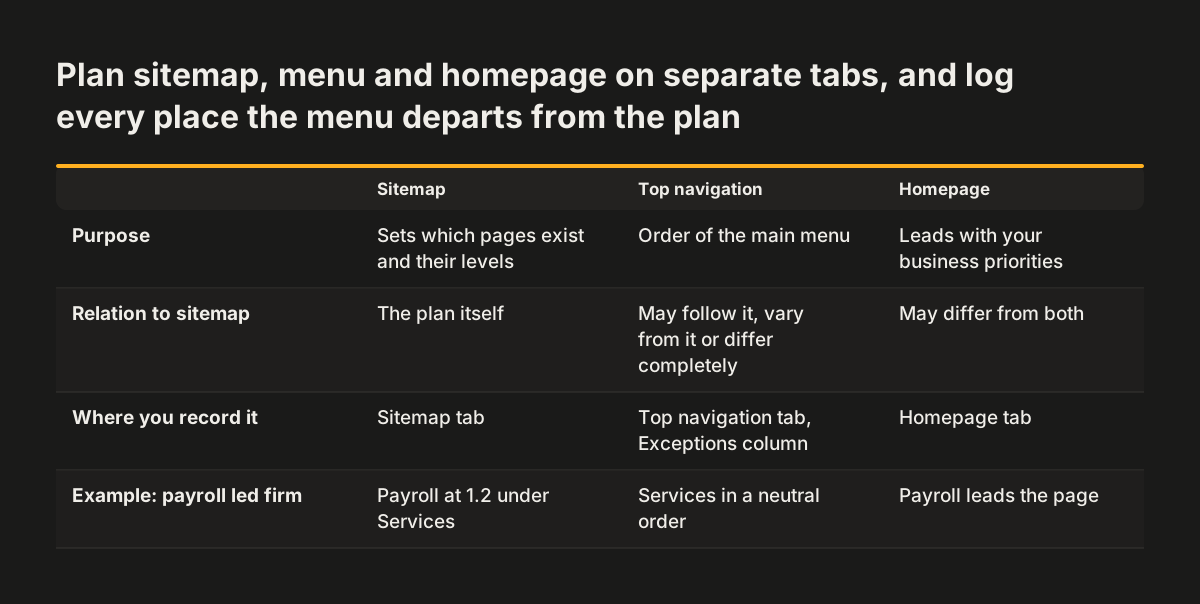
The top navigation does not have to copy the sitemap. Plan the sitemap, the top navigation and the homepage on three separate tabs. The menu can follow the sitemap, vary from it or differ from it completely.
The homepage is a third decision again. It can differ from both the sitemap and the menu, and lead with your business priorities. A firm whose most profitable service is payroll might lead the homepage with payroll, even though the menu lists services in a neutral order.
Keep a record of every place where the navigation departs from the sitemap. An Exceptions column on the top navigation tab works well for this. It notes when a menu link does not go to the expected page, or when it links straight to an external website such as a client portal. Without that record, the build team has to guess.
Use the same words in the menu, on the page headings and in the sitemap. If the menu says "Payroll" and the page heading says "Salary administration", visitors wonder whether they have landed in the right place.
One rule applies however you design the top navigation. Once chosen, it must appear in the same relative order on every page where it repeats. That is an accessibility requirement, covered next.
Consistent navigation and WCAG 2.1 Success Criterion 3.2.3
WCAG 2.1 requires repeated navigation to appear in the same relative order on every page. The W3C's Understanding Success Criterion 3.2.3: Consistent Navigation sets this at Level AA. Navigational mechanisms repeated across a set of web pages must occur in the same relative order each time, unless the user initiates a change.
The W3C explains who depends on this. People with low vision who use screen magnification see a small part of the screen at a time. They use visual cues and page boundaries to find repeated content quickly. Blind users who move through a page sequentially benefit when navigation sits in a consistent place in the source order. Consistent ordering also helps users with cognitive limitations and intellectual disabilities.
The rule is less strict than it sounds. "Same relative order" means the same position relative to other items, even if items are added or removed. Sub-navigation menus and blocks of secondary navigation are allowed. Users may also change the order themselves through adaptive software or preference settings.
The documented failure is specific. Failure F66 is presenting navigation links in a different relative order on different pages. The sufficient technique, G61, is presenting repeated components in the same relative order each time they appear.
At Svennis we check menu order in the page templates before any visual design is signed off. We tab through the header with a keyboard on the homepage, a service page and a blog post, and confirm the links arrive in the same sequence on each.
How search engines find pages through your navigation
Search engines find most pages by following links, so your navigation is also the crawler's route map. Google's SEO Starter Guide says Google uses programs called crawlers to explore the web for pages to add to its index. It finds pages primarily through links from pages it has already crawled.
The practical consequence is simple. Every page in your sitemap needs at least one link pointing to it from another page. A page that sits in the spreadsheet but in no menu, footer or body text is hard for Google to discover.
The XML sitemap is your backup. According to 1dea, XML sitemaps are for search engines and act as a navigation tool for crawlers. The most common location is /sitemap.xml. A site with more than one sitemap often has an index at /sitemap_index.xml.
Many CMS platforms, including WordPress, Joomla and Drupal, have built-in features or plugins that generate the file and update it as content changes. Our guide to choosing a CMS for your redesign covers what else to look for after launch.
You can monitor how Google sees the site in Google Search Console, a free Google service for managing your presence in its results. Be patient after a relaunch. Google says some changes take effect in a few hours and others take several months.
Testing the sitemap before any design starts
Test the sitemap with real people before anyone designs a page. The cheapest method is tree testing. The Interaction Design Foundation defines it as giving users a list of tasks and asking them to navigate to where they think the content would be, using only the sitemap.
Tree testing needs no designs at all. Services such as Treejack only need the details of your sitemap. They record how often users succeed and where navigation seems to fail. A task such as "Find out whether this firm runs payroll for companies with staff abroad" quickly shows whether "Services" and "Payroll" are the labels people expect.
Share the sitemap where everyone can comment. Figma, for example, lets many users work on a sitemap at the same time. A shared spreadsheet works just as well for a small site.
Before design starts, run these checks on the planning sitemap:
- Every page has a unique page number and a parent page.
- Every Level 1 page appears in the top navigation, or is listed in the Exceptions column.
- Every page has at least one planned link pointing to it.
- No two pages cover the same subject.
- The menu labels match the page headings word for word.
- The header and footer navigation have one fixed order for every page template.
Keep the sitemap alive after launch. A planning sitemap goes out of date as content is added or changed. Update the spreadsheet whenever a page is added, merged or removed.
What sitemap and navigation planning means for a European business
A European business site often runs in several languages, and WCAG treats each language as its own set of pages. The W3C states that different language versions are considered different sets of web pages. Within the French site, the menu order must stay consistent. The French menu does not have to match the German one.
That gives you room to plan per market. A service you sell only in one country can sit in that language's navigation alone. Keep a separate tab per language in the planning sitemap, each with its own page numbers and Exceptions column.
Check what Google sees, not only what your local visitors see. Google's SEO Starter Guide notes that its crawler's location is generally the US. If your site changes content or redirects according to where the visitor is, make sure you are satisfied with the version Google sees from there.
Consistent Navigation is a Level AA success criterion, so it sits inside the WCAG 2.1 AA level that most accessibility requirements refer to. Our guide to the European Accessibility Act and how to meet WCAG 2.1 AA explains which businesses it covers and what else the level asks of your site. Planning a consistent menu at the sitemap stage costs far less than reworking every template after launch.
Next steps for planning your sitemap and navigation
You can start the planning sitemap this week with a spreadsheet and your current site. Work through these steps in order:
- Write down the site's goals and the main tasks visitors come to do.
- List every existing page and mark it keep, merge or remove after a content audit.
- Number the pages, assign Level 1 and Level 2, and keep the structure flat unless you have well over 100 pages.
- Add Priority, Analytics tag and Content plan columns.
- Draft the top navigation and homepage on separate tabs, and record every exception.
- Run a tree test with a handful of customers or colleagues and fix the labels that fail.
- Fix one order for the header and footer menus and check it on every page template.
Bring the finished spreadsheet to whoever builds the site. It answers most scoping questions before the first meeting. If you are still deciding whether the site needs rebuilding at all, read when a website redesign pays off. If it does, our website redesign service starts from this kind of sitemap.