
Setting up and reading Google Search Console after a website redesign
Verify your site, submit the new sitemap and read the indexing and Performance reports so lost pages show up before traffic drops after a redesign.
- Nº
- 36
- Published
- Read
- 12 min
- Category
- Notes
- Written by
- Revylio
Google Search Console after a redesign: verify early, then read the reports weekly
Setting up and reading Google Search Console after a website redesign comes down to three jobs. Verify the new site before it goes live. Submit the new sitemap on launch day. Then read the page indexing and Performance reports every week until the figures settle, so lost pages and broken redirects show up before traffic drops.
Google Search Console is a free Google tool that shows how Google crawls, indexes and serves your website, and how the site performs in Google Search. It was previously called Google Webmaster Tools, so older guides still use that name. You add your site, prove that you own it, and the reports fill as Google collects data. Google's own introduction to Search Console covers the full list of reports.
Two terms run through this guide. Crawling is the automated process in which Google's programs, called crawlers, fetch pages across the web. It is the first step before a page can be indexed. Indexing is the inclusion of a page in Google's index, and only indexed pages can appear in search results.
A redesign changes URLs, templates and internal links at the same time. Google mainly finds pages through links from pages it has already crawled. A broken menu or a missing redirect can therefore hide pages from it. Google also says some changes take effect within a few hours and others take several months, which is why the weeks after launch need watching.
Domain property or URL prefix property: choose the Domain property for a redesign
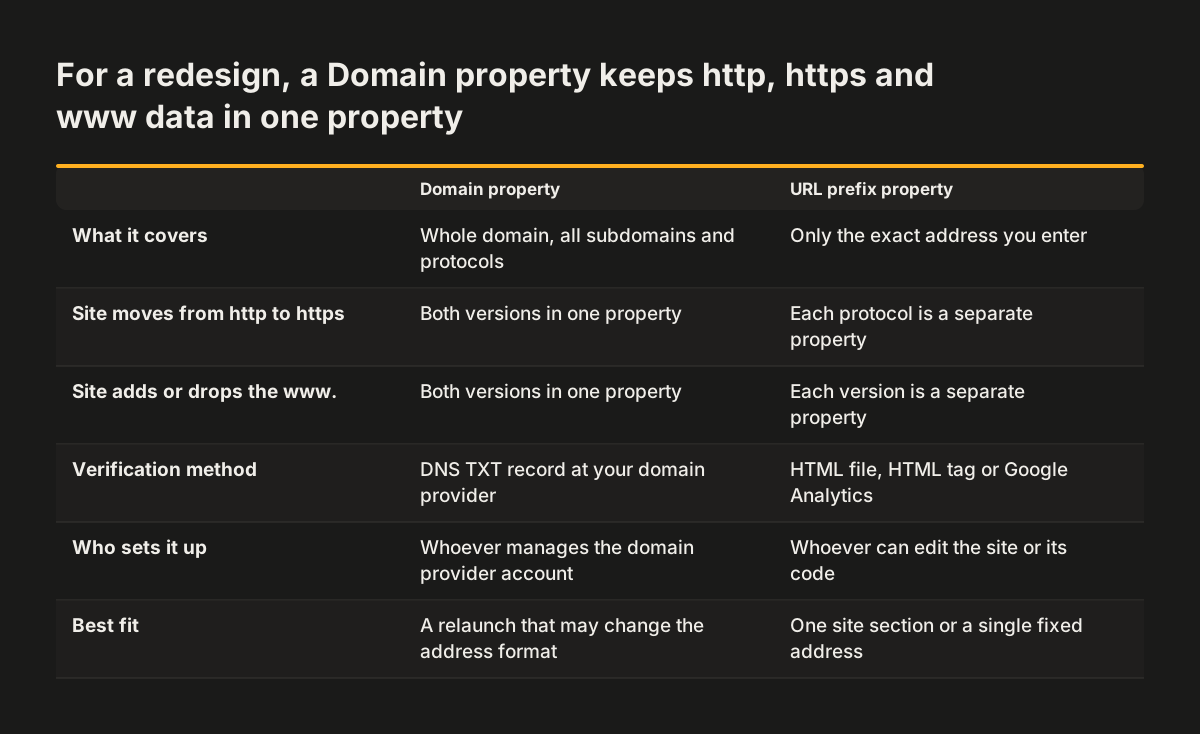
A property is the site, or part of a site, that Search Console reports on. For a redesign, the Domain property is usually the safer choice. The Sharefox help centre describes the two ways to add a site. A Domain property covers the whole domain. A URL prefix property covers only the address you enter, including the protocol, usually https://, and any subdomain such as www.
The difference matters when a relaunch changes the address format. Suppose your new site moves from http to https, or drops the www. A URL prefix property set up for the old address may then stop matching the new one. A Domain property covers the whole domain. A change of format inside it does not leave you without a property.
The Domain property has one practical cost. It requires DNS verification. You add a record at your domain provider, then click Verify in Search Console. You therefore need access to the account where the domain is registered, or someone who has it. A URL prefix property can be verified quickly with an HTML tag, according to Sharefox.
Timing can decide the order. If your web team cannot reach the DNS settings before launch, start with a URL prefix property for the new https address. Add the Domain property as soon as someone with domain access can create the record.
Verifying ownership with a DNS record, an HTML file or an HTML tag
Verifying ownership means proving to Google that you control the site. Once you add a property, Search Console asks you to choose a verification method. Pick the one your team can carry through the relaunch without breaking it.
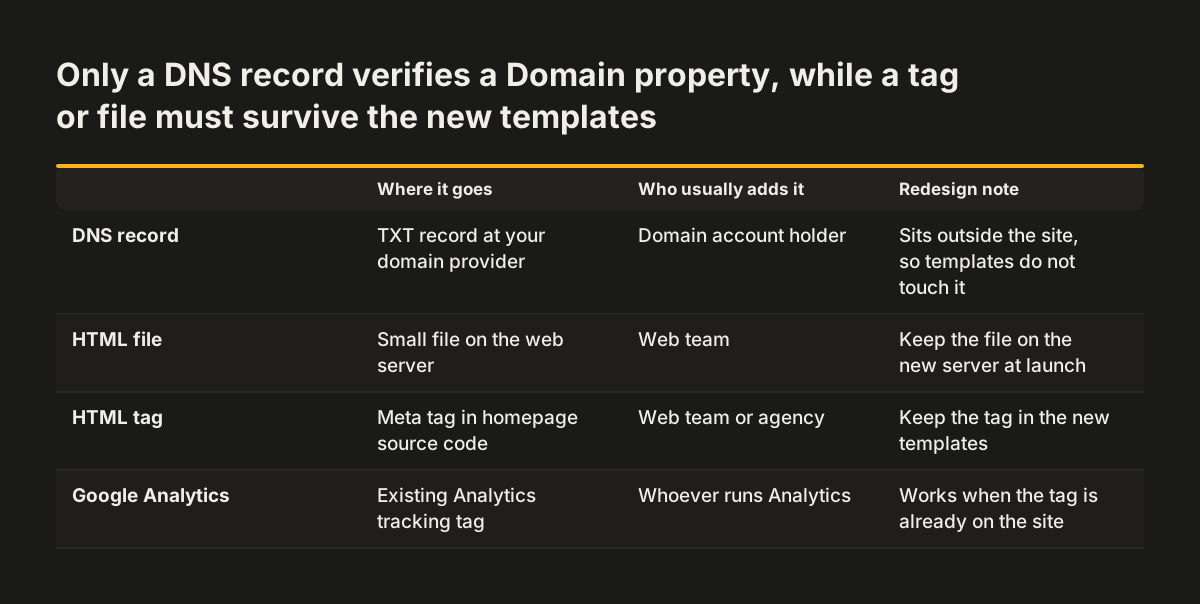
The common verification methods are:
- DNS record: a TXT record added at your domain provider. This is the method a Domain property requires.
- HTML file: a small file uploaded to your web server.
- HTML tag: a meta tag placed in the source code of your homepage.
The tag method uses one line that goes inside the head section of your homepage. Search Console gives you the tag with your own value, and it looks like this:
<meta name="google-site-verification" content="{{CONTENT}}" />The only part that changes is the value in place of {{CONTENT}}, which Search Console generates for you. As the Sharefox help centre puts it, that value is what matters. Make sure the new site's templates carry the tag, so verification does not depend on the old design.
Worked example: verifying a Sharefox site
On a Sharefox site, go to Admin, Settings, Integrations, Marketing. Paste only the content value into the "HTML tag content" field and click Publish, as the Sharefox guide to setting up Search Console describes. Then return to Search Console and click Verify. For a Domain property, the same guide has you copy the value into a record at your domain provider before clicking Verify.
Search Console access: keep the property on a company account
Search Console access should sit with a Google account your company controls, not with one employee or your web agency. During a redesign several people touch the site. Logins created for a project tend to leave with the people who made them. A shared company account keeps the property, and its history, with the business.
The owner's inbox matters as much as the login. When Google finds problems on your site, Search Console sends an email about them. Those alerts should land in a mailbox someone reads. A contractor who has moved on will not act on a warning about a hacked page or a manual action.
A sensible arrangement keeps ownership on the shared account. Your web team or agency then gets access for the length of the project. When the project ends, remove that access. Check that alert emails still reach the right people, and note in your handover documents who holds the account.
Submitting the new sitemap on launch day
A sitemap is a file that lists all the URLs on your site that you care about, and a redesigned site needs its new one submitted on launch day. Google says it can find your pages without a sitemap. It may find them faster, though, when you submit one through Search Console. After a redesign, many addresses are new, so speed matters.
Submitting takes a few minutes:
- Open the property for the new site.
- Find "Sitemaps" under Index in the left-hand menu.
- Enter the address of your sitemap file and submit it.
- Come back the next day and check the status Search Console reports for it.
The sitemap should list only pages you want in Google. One conflict is easy to create during a relaunch. If a page carries a noindex instruction, which asks Google to keep it out of results, but the same page is in your sitemap, Search Console shows that as an error. Staging pages and test templates are the usual suspects, so ask your web team to check the file before launch.
Expect a wait before the reports fill. Depending on how much traffic your site gets, data can take days or weeks to appear in a new property. That is one more reason to verify the new site before launch day rather than after it.
Reading the page indexing report for lost pages and 404 errors
The page indexing report shows which of your pages Google has indexed and which it has not, with a reason for each group. Older guides call it the Coverage report, because Search Console reports have been added, renamed and removed over the years. After a redesign, this report is where lost pages show up first.
Two patterns deserve attention in the first weeks. The first is a growing number of pages that are not indexed. The second is 404 errors, the response a server gives when a requested page does not exist. After a relaunch, 404 errors often point to old addresses that were removed without a redirect to their new equivalent.
The fastest way to judge the report is to compare it with a list of the old site's URLs. If you ran a content audit before the redesign, you already have that list, along with which pages earned traffic. At Svennis we export the old site's URL list before launch and check it against the indexing report and the 404 list in the weeks after go-live. The gap we find most often is old pages redirected to the homepage instead of to the page that replaced them.
Not every excluded page is a problem. Pages you removed on purpose, or pages marked noindex, belong outside the index. Focus on pages that earned traffic before the relaunch and now appear as not indexed or as 404 errors.
Checking single pages with the URL inspection tool
The URL inspection tool checks one address at a time, and it is the quickest way to confirm that a key page made it through the relaunch. According to Google, you can test the live URL, see detailed information about the resources the page loaded, and ask Google to crawl that specific page. You can inspect any URL in the property for indexing issues.
Start with the pages that matter most to your business. That usually means the homepage, your main service pages and anything that brought enquiries before the redesign. For each one:
- Paste the new URL into the inspection bar at the top of Search Console.
- Read whether Google has the page in its index.
- If not, run the live test to see whether Google can fetch it now.
- If the live test succeeds, request indexing.
Inspecting old addresses helps too. It shows what Google currently holds for a URL from the previous site. The redirect plan itself belongs in your migration work, and our guide to website migration without losing Google traffic covers it step by step.
One tool is easy to misuse here. The Removals tool hides a URL from Google results, but such an exclusion only lasts about six months. It is a temporary measure for an urgent case, not a way to tidy up the old site's addresses.
Reading the Performance report to catch a traffic drop early
The Performance report shows the traffic your site gets from Google Search, broken down by search queries, pages and countries. It reports four figures. Impressions are the number of times your site appeared in results. Clicks are the visits that followed. Click-through rate (CTR) is clicks as a share of impressions, and average position is where your pages tended to rank.
The queries breakdown is the part to read first. It shows the searches that led people to your site. After a redesign, that tells you whether you still appear for the searches that brought enquiries before.
To read the report after a relaunch, compare the weeks since launch with the same length of time before it. Then switch to the Pages tab and sort by the change in impressions. A page that lost most of its impressions is your first lead. Check whether its old URL redirects to it, and whether the indexing report lists it.
Patience is part of reading this report correctly. Google says some changes take effect in a few hours, while others could take several months. Early dips can recover as Google recrawls the site, so judge trends over weeks rather than days.
You can link Search Console to Google Analytics to see this data in your Analytics reports. Our post on measuring what a website brings in, from first visit to closed deal covers the Analytics side, so it is not repeated here.
Post-launch checklist: which Search Console report to read, and when
A relaunch calls for more frequent checks than Google's usual advice. Google suggests looking at your account about once a month, or whenever the site's content changes. A redesign is the biggest content change most sites make. The table below sets out what to read in the weeks after launch.
| Report | When to read it | What signals trouble | What to do |
|---|---|---|---|
| Sitemaps | Launch day, then the day after | The sitemap shows errors or cannot be read | Fix the file with your web team and resubmit it |
| URL inspection | Launch day, for key pages | A key page is not indexed | Run the live test, then request indexing |
| Page indexing | Weekly in the first weeks | Rising 404 errors, or pages in the sitemap marked noindex | Add the missing redirect or correct the sitemap |
| Performance | Weekly, judged after a few weeks | A page or query loses most of its impressions | Check the old URL's redirect and the page's index status |
| Core Web Vitals | Monthly | Groups of URLs flagged as slow | Ask your web team to fix the template behind them |
| Manual actions and Security issues | When an alert email arrives, and monthly | Any entry at all | Act at once and follow Google's guidance in the report |
The last two rows need a word of explanation. The Core Web Vitals report rates page loading on mobile and desktop using real visitor data, not a lab test, so a new template can show up there. A manual action is a measure Google takes against a site that can keep the whole site, or single pages, out of search results. The Security issues report warns when Google thinks a site may have been hacked or could harm visitors.
Search Console for a UK business: country data, crawler location and domain moves
For a UK business, the Performance report's country breakdown is the first setting to use. Filter by United Kingdom to see how the relaunch affected your home market. If you also sell abroad, compare each country separately, because a drop in one market can hide inside a stable total.
Google's crawler usually visits from the United States. Google's SEO Starter Guide advises making sure you are satisfied with what Google sees from that location. That matters if your new site changes content, prices or language by visitor location. If you run separate pages for several countries, our guide to multilingual websites for several countries explains how to structure them. Google also crawls and indexes pages as a mobile device, so check the mobile version of every key page.
Some redesigns move to a new domain, for example from a .com address to a .co.uk one. In that case, Search Console's Change of Address tool helps you tell Google about the move. It also helps migrate your search results from the old site to the new one.
Next steps: set up Search Console before your relaunch date
The most useful thing you can do is put Search Console in place before the new site goes live. A property verified in advance shows the old site's baseline, and that baseline is what you compare against after launch. Without it, a drop in traffic has nothing to measure against.
Work through these steps in order:
- Create or choose a shared company Google account to own the property.
- Add a Domain property and verify it with a DNS record at your domain provider.
- Give your web team access for the length of the project.
- Export the old site's top pages and queries from the Performance report.
- Ask your web team to keep the verification tag in the new templates and to prepare a clean sitemap.
- On launch day, submit the sitemap and inspect your key pages.
- Read the page indexing and Performance reports weekly until the figures settle.
Search Console tells you where a relaunch went wrong, but the fixes happen in the site itself. Redirects, templates and sitemaps all belong to the build. If your current site needs that work, our website redesign service page explains how we plan relaunches so search traffic carries over.