Website security basics for business owners and what to ask your web team
A plain checklist of website security basics: updates, backups, HTTPS, admin access, security headers and safe forms, and what to ask your web team.
- Nº
- 33
- Published
- Read
- 13 min
- Category
- Notes
- Written by
- Revylio
Website security basics: six protections your web team should confirm
Website security basics for business owners come down to six protections. You need current software, backups you can restore, HTTPS on every page, controlled admin access, forms that distrust visitor input and security headers. Whoever builds and hosts your site should confirm each one in writing. You should know what a good answer sounds like.
Website security is the practice of protecting websites from unauthorised access, use, modification, destruction or disruption. That is the definition in MDN's guide to website security. The WordPress hardening handbook adds a useful frame: security is risk reduction, not risk elimination. You apply the controls that are reasonable for your site, and they lower the odds of being targeted and hacked.
The stakes are concrete. MDN notes that the damage from an attack can be reputational, financial or even physical. Lumiun, citing the Data Breach Investigations Report 2020, reports that 86% of cyber attacks that year had a financial motive.
How business websites get attacked: automated bots and weak applications
Most attacks on a business website are automated, not personal. The WordPress hardening handbook says many WordPress attacks are carried out autonomously by malicious software bots. The bots look for a known weakness and use it wherever they find it.
The same handbook names the two most common attacks on a WordPress site. The first is a specially crafted HTTP request aimed at a specific known vulnerability. The second is brute-force password guessing. A brute-force attack, in Lumiun's definition, tries many combinations of username and password in a very short time.
Where the weakness sits decides who must fix it. The handbook says a hack is rarely caused by the infrastructure and most often by the application itself: the website software, its plugins and its settings. Hosting still matters. On a shared server, your site can be compromised when another site on the same server is compromised, even if your own site is well configured.
MDN offers a sense of proportion: not every site is open to every attack. Which attacks matter depends on the features a site offers and how they are built. A brochure site with one contact form has fewer exposures than a shop with customer logins and payments.
Ask your web team: is the site on shared hosting, and which of its features, such as logins, forms or payments, carry the most risk?
Software updates: keep the CMS, themes and plugins on supported versions
Keeping software current is the security measure you control most directly. A content management system (CMS) is the software your team uses to edit pages, such as WordPress. The WordPress hardening handbook states plainly that older versions of WordPress are not maintained with security updates. A site left on an old version keeps every flaw that was fixed after it.
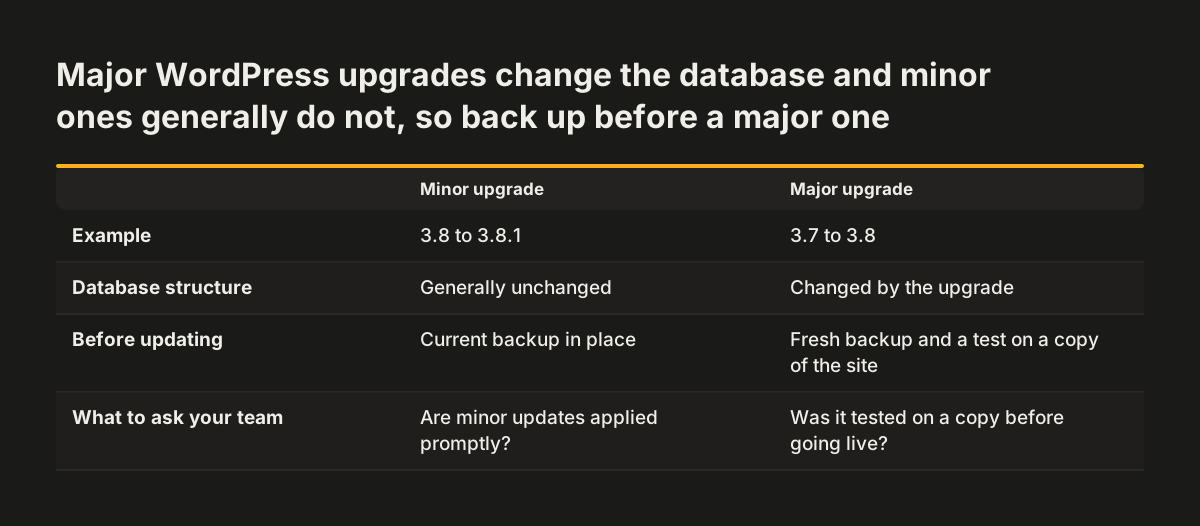
WordPress has updated itself automatically since version 3.7. The handbook also explains the difference between update types. Only major point upgrades, such as 3.7 to 3.8, change the database structure. Minor upgrades, such as 3.8 to 3.8.1, generally do not. That difference is a good reason to take a fresh backup and test before every major upgrade.
Themes and plugins need the same care as the CMS. Every plugin is extra code that someone must keep current. An unused plugin or an inactive theme adds risk without adding anything visitors see.
One rule from the handbook is absolute: official WordPress releases come only from wordpress.org. Never install WordPress from any other website.
Ask your web team: who applies core, theme and plugin updates, how often, and where are they tested first?
Backups: how often they run, where they are kept and when a restore was last tested
A backup is a copy of the site's files and database that you can return to after an attack or a failed update. Lumiun lists backups among its ten good internet security practices for companies, next to training, updates and access control. The real question is not whether backups exist. It is whether they can be restored quickly.
Three details decide whether a backup will help you on a bad day:
- Frequency. Ask how much work you could lose. A shop that takes orders every day needs more frequent backups than an information site that changes once a month.
- Location. A backup stored only on the same server as the site can disappear with it. At least one copy belongs somewhere else.
- Restore test. A backup nobody has ever restored is a hope, not a plan. Ask when the last test restore happened and how long it took.
Backups and updates depend on each other. Major WordPress upgrades change the database structure, as the hardening handbook notes, so a backup taken just before the upgrade gives you a clean way back.
Ask your web team: how often does the site back up, where are the copies stored, and when did you last restore one?
HTTPS on every page, with a certificate that renews automatically
HTTPS is the encrypted version of the protocol browsers use to load web pages. MDN recommends serving all of a site's pages and subresources over HTTPS. Subresources are the images, scripts and style files a page loads. A page that loads its text over HTTPS but one script over plain HTTP still leaves a gap.
According to MDN, HTTPS keeps login details, cookies, form submissions and header information out of easy reach of attackers. Every contact form on your site depends on it, and so does every login to your CMS.
The certificate behind HTTPS needs routine care rather than attention once a year. Renewal should be automatic. Someone should also receive an alert if a renewal fails, before visitors meet a browser warning.
Ask your web team: does every page and file load over HTTPS, does the certificate renew automatically, and who is alerted if it does not?
Admin access: named accounts, two-factor login and only the rights each person needs
Admin access is the most valuable thing an attacker can take from your site. MDN describes user account access as one of the most valuable targets for attackers. Two questions govern it: how people prove who they are, and what each person may do once logged in.
A password alone is the weakest way to log in. Two-factor authentication (2FA) asks for a second proof of identity on top of the password, such as a code from a phone app. MDN ranks passkeys as the most secure method, and time-based one-time passwords (TOTP) as more secure than traditional passwords.
For permissions, apply the least-privilege principle: each person gets only the access their job needs. A content editor does not need the same rights as a developer. A marketing consultant does not need hosting or database logins. Give everyone a named account, never a shared admin password. A shared password hides who did what, and anyone who leaves still knows it.
File transfers need the same care. SFTP is FTP with the password and data encrypted on their way between your computer and your website, as the WordPress handbook defines it. Plain FTP sends them unprotected.
Ask your web team: who has admin, hosting and database access today, is 2FA switched on for all of them, and is file access SFTP only?
Security headers, cookies and third-party scripts: the protections in the browser
Security headers are instructions your server sends to the browser with every page, telling it how to treat that page. They cost little to set and block whole classes of attack. MDN recommends several that any business site can use.
The browser-side protections to ask about are these:
- Content Security Policy (CSP). A CSP tells the browser which scripts it may run. MDN recommends a strict policy if possible, or at least one that disallows inline JavaScript.
- Frame protection. Clickjacking hides your page inside a frame on another site to trick visitors into clicking. MDN notes that the right HTTP headers stop your site being embedded in an iframe elsewhere.
- Subresource Integrity. MDN recommends it for any script loaded from an external source such as a content delivery network (CDN), so the browser rejects a file that has been altered.
- Cookie settings. MDN recommends setting the SameSite attribute to Strict where possible, or Lax otherwise. Cookies that keep users logged in should have short lifetimes.
Third-party scripts deserve a review of their own. A chat widget or marketing tag added without review runs someone else's code on your pages and can slow the site. The performance side is covered in what to fix first on a slow website.
Ask your web team: which security headers does the site send, and who approves new third-party scripts?
Contact forms: check every input on the server and store less personal data
Contact forms are where visitors send data into your site, so they are where most input attacks begin. MDN puts the root cause in one line: almost all the exploits it describes succeed when the web application trusts data from the browser. A safe form treats every field as untrusted until the server has checked it.
Three attacks target forms and the pages built from their data:
- Cross-site scripting (XSS) lets an attacker inject scripts through your site into other visitors' browsers. MDN says XSS has historically been more common than any other threat. Input sanitisation, which changes user data so it cannot run scripts or affect server code, is the defence, and many web frameworks apply it by default.
- SQL injection slips database commands into a form field. MDN names parameterised queries, also called prepared statements, as best practice.
- Cross-site request forgery (CSRF) makes a logged-in user's browser carry out actions without their knowledge. One defence MDN describes is a user-specific secret the server generates and requires with every form submission.
The second rule is to keep less. Data you never store cannot leak. MDN gives payment cards as an example: the most common pattern is to show only the last 4 digits of a stored card number. Where form data goes after submission matters too, which is why a contact form should not end in an inbox.
Ask your web team: are form inputs validated on the server, and what personal data does the site store after a form is sent?
Worked example: the hardening settings we check on a WordPress site we take over
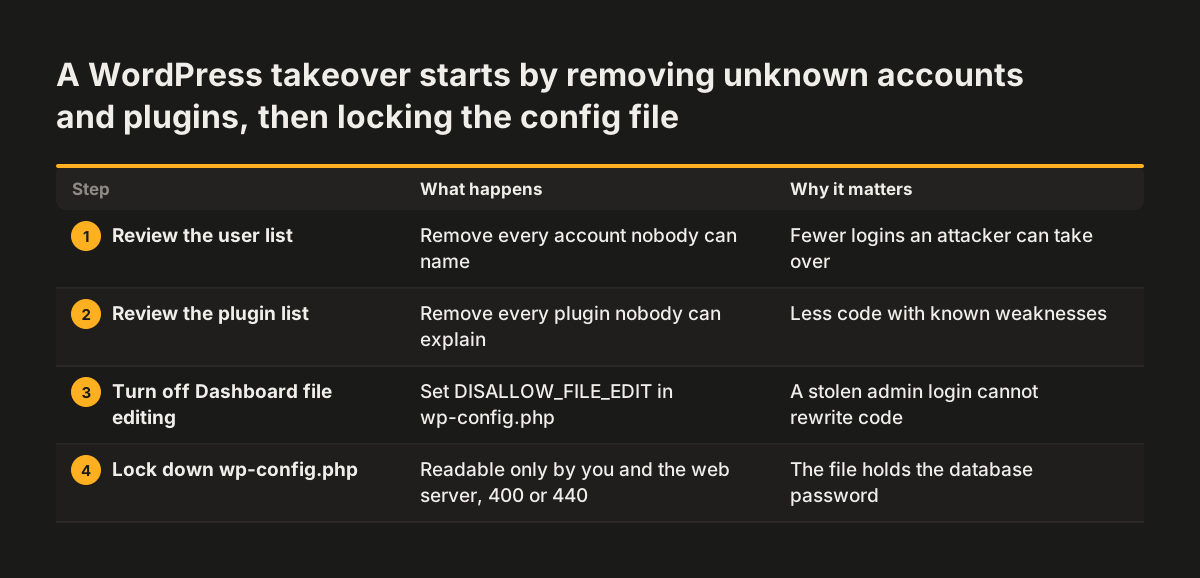
When Svennis takes over a WordPress site for redesign or maintenance, we start with the user list and the plugin list. We remove every account nobody can name and every plugin nobody can explain before we touch the design. Then we work through the settings below, all taken from the WordPress hardening handbook.
- Dashboard file editing. By default, administrators can edit PHP files, such as plugin and theme files, from the WordPress Dashboard. Setting the
DISALLOW_FILE_EDITconstant inwp-config.phpturns that editor off, so a stolen admin login cannot rewrite code. - The configuration file.
wp-config.phpholds the database password. The handbook says only you and the web server should be able to read it, which generally means a 400 or 440 permission. - File and folder permissions. WordPress's automatic updates set files to 0644 and directories to 0755. Very different values on a site are worth a question.
- Database rights. For normal operation, the WordPress database user needs only SELECT, INSERT, UPDATE and DELETE. Major upgrades change the database structure, so agree with your developer how those are handled.
- Table prefix. Many published WordPress SQL injection attacks assume the default prefix
wp_. A new build can use a different one. - Website firewall. Reverse-proxy firewall services such as Cloudflare, Sucuri and Incapsula filter traffic before it reaches your server by changing your DNS records. The handbook notes that they also act as CDNs by default.
None of these steps changes how the site looks. Together they close the paths the bots in the handbook use most.
Website security checklist: what to ask your web team and what a good answer includes
The table below gathers every question from this guide. Send it to whoever builds or hosts your site and ask for written answers. A vague answer to any row is a reason to ask again.
| Area | Question to ask | A good answer includes |
|---|---|---|
| Software updates | Who updates the CMS, themes and plugins, and how often? | A named person, a schedule and testing on a copy of the site |
| Unused code | Which plugins and themes are installed but not used? | A short list, with unused items removed |
| Backups | How often, where kept, last restore test? | Copies stored off the server and a recent, timed restore |
| HTTPS | Does every page and file load over HTTPS? | Yes, with automatic certificate renewal and a failure alert |
| Admin access | Who has admin, hosting and database access? | Named accounts only, 2FA on all, rights matched to each role |
| File access | How do people upload files to the server? | SFTP only, never plain FTP |
| Security headers | Which headers does the site send? | A Content Security Policy, frame protection and safe cookie settings |
| Forms | Are inputs checked on the server, and what is stored? | Server-side validation and only the data you need |
| Third-party scripts | Who approves new tags and widgets? | One owner who reviews each script before it goes live |
The table does not replace a security audit. It tells you whether your supplier has thought about each area, which is what a business owner needs to know first.
Website security for a UK or EU business: where it meets data protection
For a business in the UK or the EU, website security and data protection law, the UK GDPR or the EU GDPR, meet in the same places: forms, cookies, backups and third-party scripts. Each holds or handles visitors' personal data. A weakness in any of them is a security problem and a data protection problem at once.
HTTPS protects form submissions in transit, as MDN explains. Stored data is a separate question, so ask why each stored field is needed. Backups contain the same personal data as the live site and need the same access controls.
Plan the response before you need it. An incident response plan is a short document that answers five questions:
- How will the problem be spotted?
- Who will be contacted, inside the business and at the supplier?
- How will the site be contained and restored?
- How will customers and partners be told if their data or service is affected?
- Who decides whether a personal data breach must be reported to the regulator, the ICO in the UK, within 72 hours of finding it? Who keeps the log of every breach, reported or not?
A page with names and phone numbers, agreed in advance, removes delay during an incident. Lumiun also stresses that staff are often the weakest link, so the people who log in to your site should know how to spot a phishing email.
Next steps: scan your site, send the questions and get the answers in writing
The first step costs nothing. MDN's HTTP Observatory tool scans a website and reports whether it follows certain good security practices, including the headers covered in this guide. You can find it from MDN's web security documentation. Run it on your own domain and keep the result as a baseline.
Then work through these steps in order:
- Send the checklist table above to your web team or hosting provider and ask for written answers.
- List everyone with admin, hosting and database access, and remove anyone who no longer needs it.
- Ask for a test restore of last night's backup and note how long it takes.
- Write a one-page incident plan with names and phone numbers.
- If you are planning new work, add these requirements to your website brief template so every supplier quotes against them.
Some answers may show unsupported software, unmaintained plugins or no working backups. Then fixing the site in place may cost more than rebuilding it. Our website redesign service explains how a rebuild, with hosting and maintenance afterwards, handles these basics from the start.