Testing website accessibility: tools and manual checks for WCAG 2.1 AA
Automated scanners find only part of the WCAG 2.1 AA issues on a site. See which checks a tool runs and which need a keyboard and a screen reader.
- Nº
- 24
- Published
- Read
- 12 min
- Category
- Notes
- Written by
- Revylio
Testing website accessibility takes a scanner and a person
Testing website accessibility means running automated tools and manual checks together. A scanner finds coded faults, such as images without alt text, in seconds. A person with a keyboard and a screen reader finds the rest. Accessibility Partners' guide to evaluation tools puts the share of barriers that automated tools can detect at about 40%.
Accessibility testing is the process of assessing a website against accessibility standards, so that people with disabilities can use it. For a business website, the standard is WCAG, the Web Content Accessibility Guidelines published by the W3C. WCAG has three levels: A, AA and AAA. Recite Me describes Level AA as the standard for most businesses.
The W3C recommends using both automated and manual methods, as AudioEye reports. The sections below set out which WCAG 2.1 AA checks a tool can run and which need a person. They follow the routine we use before a redesigned site goes live, with a worked example and a table you can reuse.
What automated accessibility scanners catch, and where they stop
Automated accessibility testing uses software to scan a page's code for common barriers. It is fast, it is cheap to repeat and it can cover every page of a site. Its weakness is that it reads code, not meaning.
Across the sources in this guide, automated tools reliably flag these faults:
- images with no alt text, the written description a screen reader reads aloud
- low-contrast text, measured against the WCAG minimum ratio of 4.5:1
- a missing page language attribute
- poor use of semantic HTML, the tags that tell software what each part of a page is
- empty links that have no text
- form inputs without labels
A scanner stops where judgement starts. AudioEye points out that the first WCAG criterion requires a text alternative that serves the equivalent purpose of the image. A tool can see that alt text is missing. It has trouble judging whether existing alt text actually describes what the image shows.
The same gap applies to navigation. Recite Me notes that automated tools may miss poorly structured navigation and alt text that is present but insufficient. AudioEye states plainly that automation alone cannot guarantee WCAG conformance. A clean scanner report is a starting point, not a pass.
Keyboard, screen reader and meaning: the checks that need a person
Manual accessibility testing is a real person using the website and looking for barriers that would stop someone with a disability. Equalize Digital lists three problems that cannot be found without a human looking at the page: poor keyboard navigation, incorrect alternative text and confusing screen reader experiences.
Keyboard navigation
Keyboard testing checks that every link, button and form field works without a mouse. The UK Intelligence Community Design System explains why this matters. People with motor disabilities may lack the fine movements a mouse needs. People with conditions such as Repetitive Strain Injury (RSI) may need to avoid a mouse altogether.
Screen reader output
A screen reader is software that reads the text of a page aloud. People who are blind might use one, and they generally cannot see the cursor on the screen. Only listening tells you whether the page is read in a logical order and whether buttons and form labels are announced properly.
Meaning and clarity
Some barriers are about sense, not code. Recite Me describes a third type of testing, user testing, in which disabled users give feedback on a site. Those participants find barriers that algorithms and non-disabled testers miss, such as unclear navigation paths or confusing button labels.
Tool or person: which WCAG 2.1 AA checks each one can run
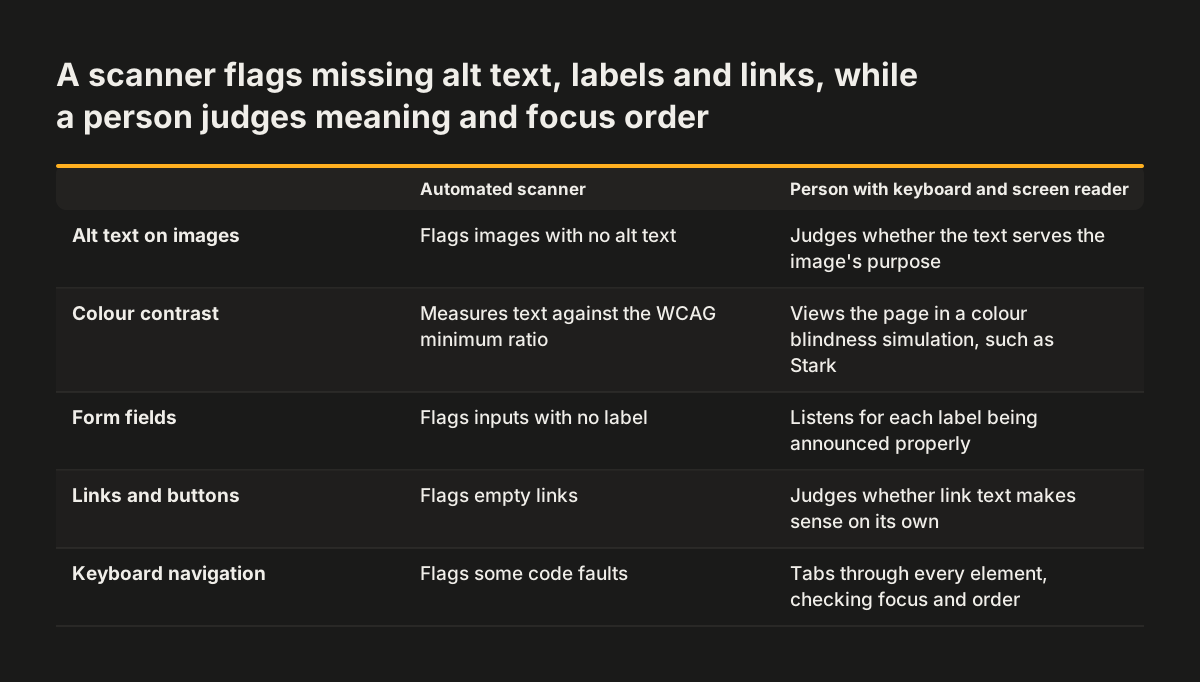
The table below splits common WCAG 2.1 AA checks between what a tool can do and what a person must do. Use it as a checklist for each page template you test.
| Check | What a tool can do | What a person must do |
|---|---|---|
| Alt text on images | Flag images with no alt text | Judge whether the text serves the same purpose as the image |
| Colour contrast | Measure text against the 4.5:1 minimum | Look at the page with a colour blindness simulation, for example in Stark |
| Form fields | Flag inputs with no label | Listen to whether each label is announced properly by a screen reader |
| Links and buttons | Flag empty links | Judge whether link text and button labels make sense on their own |
| Keyboard navigation | Flag some code faults | Tab through every element and confirm the focus indicator is visible |
| Headings and landmarks | Flag poor use of semantic HTML | Check the heading outline in HeadingsMap and landmark names in Landmark Navigation |
| Screen reader experience | Little it can judge | Listen to whether the page is read in a logical order |
The pattern is consistent. The tool answers "is something there?" The person answers "does it work for someone who cannot see the screen or use a mouse?"
Free accessibility tools to install before the first test
You can set up a complete testing kit in a browser at no cost. The University of Michigan organises its testing in three steps: set up your tools, run global tests, then run specific tests. It says anyone should be able to use its checklist, though a few checks need a look at the page markup.
These are the tools the sources recommend, and what each one does:
- Accessibility Insights, a browser plugin. In FastPass mode it runs automated checks and adds a manual check called "Tab Stops". In Assessment mode it also guides you through manual testing to WCAG AA. The UK Intelligence Community Design System's manual testing guidance recommends Assessment mode.
- axe DevTools for Chrome, which automates some testing and lets you export the results.
- WAVE from WebAIM, a free tool that highlights errors on the page itself, available on its website or as a browser extension.
- Stark for Chrome, which checks colour contrast and simulates colour blindness.
- HeadingsMap, which shows an outline of the page's headings so you can check their order.
- Landmark Navigation, which shows whether the right HTML landmarks are present and whether each has a unique name.
- Chrome Developer Tools, for inspecting the markup, with Lighthouse built in to audit accessibility alongside performance and SEO.
- A screen reader, such as NVDA, JAWS or VoiceOver.
HTML landmarks are the labelled regions of a page, such as navigation and main content. They let screen reader users jump between sections instead of listening to everything in order.
Worked example: testing a contact page with a form
A contact page is a good first test, because it combines text, links and a form that must work for everyone. Here is the order we follow on one page, using the tools listed above.
- Run the automated pass. Open the page and run FastPass in Accessibility Insights. Write down each failure and the WCAG criterion the tool names against it.
- Run the Tab Stops check. Put the mouse aside and press Tab from the top of the page. A focus indicator, the outline around each element as you tab to it, must appear every time. You must reach every form field and the send button in a sensible order.
- Listen with a screen reader. Turn on NVDA, JAWS or VoiceOver and move through the page. Check that the content is read logically and that every field label and button is announced properly.
- Check the structure. Open HeadingsMap and confirm the headings form a clear outline. Open Landmark Navigation and confirm the landmarks are present and uniquely named.
- Check contrast and zoom. Use Stark to test text contrast against 4.5:1 and to simulate colour blindness. Then view the page with a screen magnifier, one of the quick manual tests AudioEye suggests.
Finish by exporting the axe DevTools results and adding your manual findings to the same list. The page passes only when both the automated and the manual checks come back clean. On a typical contact page the manual passes take longer than the scan, and that is where most of the useful findings come from.
Which pages to test by hand, and how often to test them
Run the automated scan on every page, and test by hand on templates and main pages. The UK Intelligence Community Design System requires full manual testing on all main pages. Templates and common components only need testing once, with their relevant variants.
Testing every page by hand rarely makes sense. AudioEye notes that a modern e-commerce site might have tens of thousands of pages, so testing each one would quickly get expensive. It also warns that manual audits cannot find issues on pages they do not test, and most cover a relatively small set. A list of templates from a content audit before a website redesign tells you which pages represent the rest.
Testing is a repeat job, not a one-off. Equalize Digital recommends audits quarterly or before launching new content. Accessibility Partners says sites should be tested after updates, redesigns or content changes. New pages written by your own team are the most common reason a tested site drifts, so it helps to follow a routine for writing accessible content for your website.
Accessibility testing during a redesign costs less than testing after launch
Accessibility testing belongs inside the redesign, from the first templates onwards. Recite Me recommends testing at each stage: during design, during development and before launch. The UK Intelligence Community Design System says keyboard testing should be carried out frequently during development, because retrofitting keyboard accessibility can be expensive.
The component library is the main risk. A component library is the set of ready-made menus, forms and buttons a site is built from. If those components are not accessible, the same guidance says the options are to fix the library or swap to a different one. Both are far easier before content is loaded than after.
At Svennis we tab through every page template of a redesigned site on the staging server before any content goes in. A menu or form that traps the keyboard is then fixed once in the template, not on every page later.
You can set this expectation at the start of a project. A website brief template for a redesign is the right place to state the WCAG level you expect and that manual keyboard and screen reader tests are part of acceptance.
What accessibility testing means for a business in the EU and UK
In the UK, the Equality Act 2010 requires businesses that serve the public to make reasonable adjustments for disabled people, and that duty covers websites. In the EU, the European Accessibility Act applies to many businesses selling to consumers. It can also reach UK businesses that sell covered products or services, such as online shops, to consumers in the EU. Very small service businesses are exempt. Our post on the European Accessibility Act for business websites explains how it relates to WCAG 2.1 AA. In both cases, test results are your record that the work has been done.
Regular testing also lowers risk. AudioEye, which sells accessibility audits, says businesses that schedule audits regularly are less likely to face legal claims. In the UK, the Equality Act 2010 duty is to anticipate barriers and remove them. Regular testing helps because it finds barriers before a customer meets one. AudioEye also states that automation alone cannot guarantee conformance. A scanner report on its own is weak evidence.
Keep the newer version of WCAG in view. The University of Michigan uses WCAG 2.1 Level AA as its standard. The UK Intelligence Community Design System says a full compliance check means working through the WCAG 2.2 Level A and AA criteria. Equalize Digital notes that WCAG 2.2 adds criteria for people with cognitive and mobility impairments. Testing to 2.1 AA and adding the 2.2 criteria to your checklist covers both.
Written records matter too. The same design system requires an Accessibility Conformance Report (ACR), a report based on the WCAG requirements, when an app is released. A business website may not need that exact document, but the habit of recording what you tested and what you found is worth copying.
Recording accessibility test results so the fixes get made
A test only helps if the findings reach whoever fixes them. The University of Michigan advises sharing review results with the parties implementing the fixes, whether internal staff or a vendor. axe DevTools can export its results, which gives the developer the automated findings in one file.
Manual findings need the same discipline. For each issue, note the page or template, what you did, what happened and the WCAG criterion it fails. The University of Michigan points out that the WCAG guideline linked to each test case explains how to fix the issue. That saves the developer a search and keeps the fix tied to the standard.
Budget for the manual part. AudioEye says there is no standard rate for manual accessibility testing. Pricing depends on the size and complexity of the site, the experience of the tester and how often audits run. If testing is part of a rebuild, it is one of the items covered in what drives the price of a website redesign.
When the budget allows, add user testing with disabled participants after your own manual checks. They find the unclear paths and confusing labels that neither a tool nor a non-disabled tester will notice.
Next steps: run a first accessibility test this week
You can run a useful first test on your own site in an afternoon. Start with one page that matters to your business, such as the contact page or a product page.
- Install Accessibility Insights, axe DevTools, Stark, HeadingsMap and Landmark Navigation in your browser.
- Run FastPass on the page and note each failure with its WCAG criterion.
- Put the mouse away and tab through the page, checking the focus indicator at every step.
- Turn on a screen reader and listen to the form labels and buttons.
- Export the axe results, add your manual notes and send both to whoever maintains the site.
- Repeat on each page template, then schedule the next round for after your next content change.
If the first test turns up keyboard traps or unlabelled forms across many templates, the fix may belong in the templates rather than page by page. Our website redesign service builds the keyboard and screen reader checks into each template before launch.
Sources
- Accessibility Partners: Best Web Accessibility Evaluation Tools
- Intelligence Community Design System: Manual accessibility testing
- AudioEye: How Manual Accessibility Testing Improves Your Website
- Equalize Digital: How to Test Website Accessibility
- University of Michigan: Testing for Web Accessibility
- Recite Me: Best Practices for Accessibility Testing your Website