How to make PDFs accessible for WCAG and the European Accessibility Act
Tag and fix the PDFs your website must keep, test them properly, and turn the rest into accessible web pages under WCAG and the European Accessibility Act.
- Nº
- 21
- Published
- Read
- 12 min
- Category
- Notes
- Written by
- Revylio
How to make PDFs accessible: tag them properly, or turn them into web pages
To make PDFs accessible, build accessibility into the source file and export it as a tagged PDF. Then repair what the export missed, and test the result with a checker and by hand. For many documents the better answer is to publish the content as a web page and keep a PDF only where you genuinely need one.
An accessible PDF is a PDF that contains a structural layer of tags. Eye-Able's guide to accessible PDFs describes these tags as invisible markers. They say what each piece of content is, such as a heading, paragraph, list, table or image, and they set the logical reading order. Screen readers and other assistive technologies depend on that layer.
The work happens in a fixed order. First you decide which PDFs need to exist at all. Then you fix the ones that stay, starting in Word and finishing in Acrobat. Finally you test them, and you move the rest into web pages. A redesign is often the easiest time to do that, because the site's content is being moved anyway.
Why PDFs fail accessibility checks: fixed layouts and missing tags
PDFs fail accessibility checks mainly because their layout is fixed and their tags are often missing or wrong. Recite Me points out that PDFs are popular because their content does not change between devices or operating systems. That same lack of flexibility is what creates the barrier for disabled users.
Converting a document to PDF does not make it accessible. Recite Me notes that without proper tagging, a PDF may look fine visually and still be confusing or unreadable for someone using accessibility tools. Eye-Able names incomplete or incorrect tags as the most common PDF accessibility error.
The Ministry of Justice lists further problems that tags alone do not solve:
- a lack of accessibility tools, such as tools to change colours or font size
- problems with zoom, scrolling and navigation, especially on a mobile
- files opening in a new tab, window or program, which makes it hard to get back to the website
- documents that are hard to maintain, so visitors meet out-of-date content
Derbyshire County Council adds that a PDF only appears in a format designed for A4. Mobile visitors have to pinch and zoom to read it. A PDF that passes a tag check can still be hard to use.
What the European Accessibility Act and WCAG expect from a PDF
If your business provides a service the European Accessibility Act covers, such as e-commerce or banking, to customers in the EU, PDFs you publish as part of that service from 28 June 2025 must be accessible just like your pages. Older PDFs and microenterprises (fewer than 10 staff and no more than 2 million euros turnover or balance sheet) are exempt, though accessible files are still good practice. WCAG is the usual way to measure that. UK businesses that do not sell into the EU are not bound by the Act, but the Equality Act 2010 still applies.
Recite Me's guide to PDF accessibility names WCAG and the European Accessibility Act (EAA) as the main frameworks for PDF accessibility in Europe. It also says WCAG applies to digital documents such as PDFs, not only to websites.
WCAG, the Web Content Accessibility Guidelines from the W3C, rests on four principles: perceivable, operable, understandable and robust. WCAG is a guideline, not a law, but standards such as EN 301 549 are built on it, so it is the usual benchmark for judging whether content meets a legal duty. Recite Me states that the EAA includes provisions for digital content, including PDFs, and aligns closely with WCAG. Eye-Able notes that the EAA covers products and services including e-commerce, banking and e-books.
The standards behind the checks
Two further standards appear in PDF audits. PDF/UA is ISO standard 14289-1, which translates WCAG requirements to PDF documents. EN 301 549 is the European standard, largely based on WCAG, that public sector bodies use to show they meet their legal accessibility duty.
In England, Wales and Scotland, the Equality Act 2010 requires businesses serving the public to make reasonable adjustments for disabled people. Northern Ireland has its own disability discrimination law. UK public sector bodies must also comply with the Public Sector Bodies Accessibility Regulations. For the wider picture on what the Act means for your site, read our guide to the European Accessibility Act for business websites.
Decide which PDFs should stay before you fix any of them
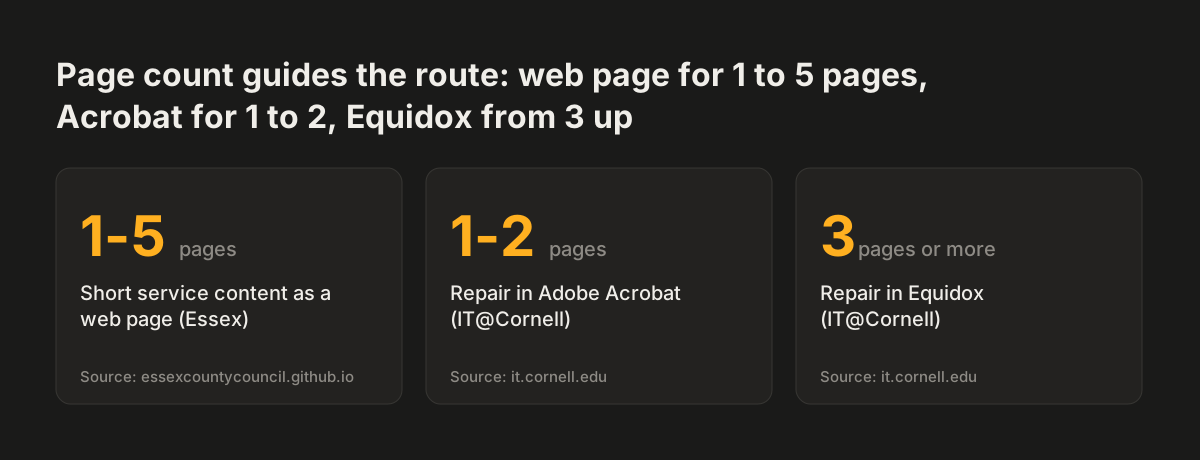
Before you fix a single PDF, decide which ones need to remain PDFs. IT@Cornell advises you to prune your site first. Keep only what visitors need and remove outdated files. Every file you delete is one you never have to remediate or retest.
Several public sector guides agree on which content works better as a web page. The table below compares their advice by type of document.
| Type of content | Recommended format | Guidance |
|---|---|---|
| Short content of 1 to 5 pages that visitors need to use a service | Web page | Essex County Council |
| Event posters | Not a PDF | Hampshire College |
| Forms | Web form, unless a PDF is absolutely necessary | Hampshire College |
| Frequently updated information | Web page in well-formatted HTML | Hampshire College |
| Text-heavy documents visitors will download | Hampshire College | |
| Documents you are required to publish as PDF | PDF with an HTML version or summary alongside | Ministry of Justice |
Use the table to sort your inventory into three groups: delete, convert to a page, and keep as an accessible PDF. Only the last group needs the steps that follow.
Source: essexcountycouncil.github.io, it.cornell.edu
Fix the source document in Word before you export a PDF
The most efficient way to make a PDF accessible is to fix the original source file, usually a Word document. IT@Cornell gives this advice, and Essex County Council notes that most PDFs start off as Word documents. The University of the Built Environment adds that fixing the original is much easier than repairing a problem that has carried over into the PDF.
Check these points in the Word file before you export it:
- Headings: use Word's heading styles, with one Heading 1 and no skipped levels. Screen readers do not recognise bold text as a heading.
- Lists: use Word's built-in list formatting so screen readers identify them.
- Links: write descriptive link text. A screen reader reads a bare web address out in full.
- Tables: give each table a header row and avoid merged or split cells.
- Images: add alt text, which is a short description a screen reader reads out in place of the picture.
- Text: use one font, such as Arial, at 12 point or higher, left-justified.
- Contrast: keep at least 4.5:1 for normal text and 3:1 for large text, as Eye-Able sets out.
- Document properties: set the title and language, which screen readers read out.
Then run the Accessibility Checker, which is available in Word, Excel and PowerPoint. The same habits apply to web content. Our guide to writing accessible content for your website covers them for pages.
Export a tagged PDF from Word and never use Print to PDF
Export your PDF through the save or export menu, never through the print dialogue. Essex County Council warns that printing to PDF strips out all the accessibility features. The University of the Built Environment confirms that Print to PDF produces a file that is not accessible.
In Word, Eye-Able recommends File > Export, or Save As with PDF as the file type. The University of the Built Environment says this should create a tagged PDF by default. In the options, select Document structure tags for accessibility. Hampshire College adds that you should choose the best for electronic distribution and accessibility option when you see it.
Acrobat's add-in and InDesign
If Acrobat is installed, it also installs the PDFMaker add-in, which creates PDFs from inside Office applications. Under its preferences, check that Enable Accessibility and Reflow with tagged Adobe PDF is selected. It is selected by default, but a colleague may have changed it.
Designers working in Adobe InDesign should export an interactive PDF. Hampshire College advises ticking both Create Tagged PDF and Use Structure for Tag Order. A brochure exported without them arrives with little or no structure, and you then repair it by hand.
Repairing a PDF when the original source file is lost
Repairing a PDF without its source file is possible but slower and riskier. IT@Cornell suggests converting the PDF back into Word and fixing it there, while warning that some documents convert well and others do not. The University of the Built Environment describes the same route through File > Export in Acrobat, back to Word, Excel or PowerPoint.
If conversion fails, you can repair the file directly in Acrobat. Essex County Council notes that you need an Adobe Acrobat Pro licence to do this. Hampshire College warns that editing tags in Acrobat Pro is hard to predict and has no Undo. Work on a copy.
What to fix inside Acrobat
Reading order decides how a document is read aloud or shown on small screens. Hampshire College explains that it relates to tag order but is not identical, so check both. Eye-Able advises marking decorative elements as artefacts so that screen readers ignore them.
IT@Cornell recommends Acrobat for PDFs of 1 to 2 pages. For documents of 3 or more pages, complex documents or forms, it recommends Equidox. Equidox is an intermediate-level tool that needs PDF accessibility knowledge and specific training.
Scanned PDFs should be a last resort, according to Hampshire College. Its text conversion service, Robobraille, recognises text and adds tags but may not catch everything. PDFs generated by software from a database are harder still, because their accessibility depends on how that software was written.
Test every PDF with an automated checker and by hand
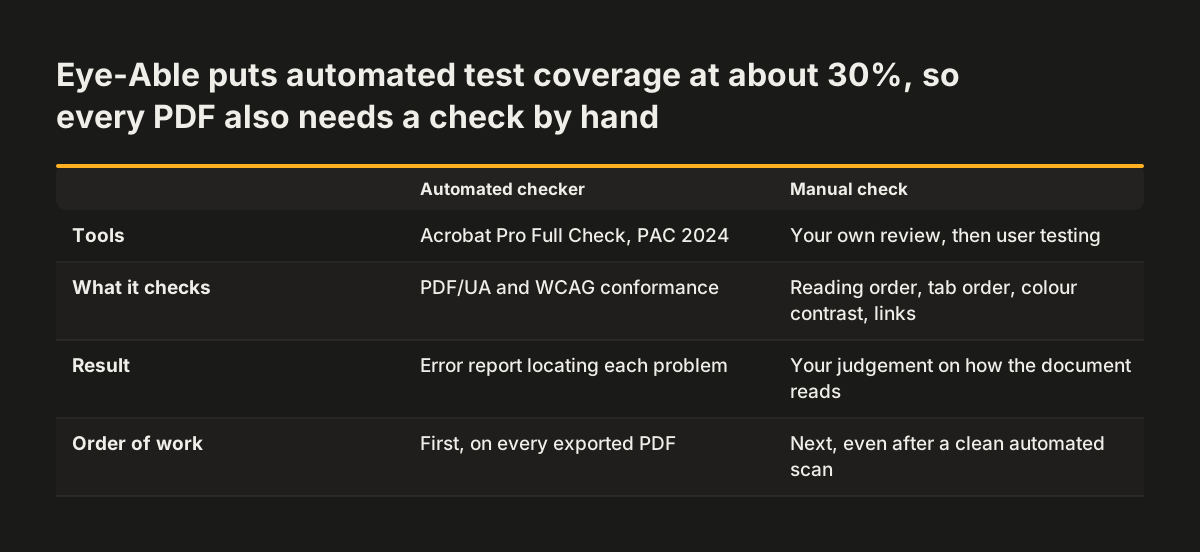
Every PDF needs both an automated check and a manual check, because automated tools miss most problems. Eye-Able states that automated tests cover only about 30% of accessibility requirements. Recite Me recommends combining automated tools with self-testing and user testing.
Start with the tools. Acrobat Pro has a built-in Accessibility Checker under Tools > Accessibility > Full Check. Eye-Able notes that PAC 2024 checks automatically for PDF/UA and WCAG conformance and reports exactly where each error sits.
Then check by hand. IT@Cornell says that even after an automated scan you must still manually check four things:
- reading order
- tab order
- colour contrast
- hyperlinks
When Svennis audits a site before a redesign, we run the automated checker first and then listen to each surviving PDF with a screen reader. A file can pass the checker while its tables and headings are still read out in the wrong order.
Testing is not a one-off job. IT@Cornell warns that scanning tools such as Siteimprove may flag new PDF issues as their technology updates, so you might fix the same file more than once. Each PDF you keep adds to that recurring testing work.
Why an accessible web page usually beats an accessible PDF
An accessible web page usually serves visitors better than even a well-tagged PDF. IT@Cornell calls converting PDFs to web pages the best way to achieve accessibility. It also notes that remediating a PDF can take more time than creating a page, and that forms are even harder to fix.
The Ministry of Justice recommends HTML over PDFs for anything people will read on screen. HTML is the code used to build web pages, so the content sits on the page itself rather than in an attachment. The ministry gives these reasons:
- search engines rank HTML content higher than PDF content
- HTML adapts to different screen sizes and devices
- HTML works with screen readers and in-browser accessibility tools
- visitor behaviour on HTML pages is easier to track, for example in Google Analytics
Derbyshire County Council makes the same case from the publishing side. Content added to the website is resized automatically for each device. PDFs, by contrast, are harder to crawl and index, harder to measure, and viewed in isolation from the site's navigation.
The usual objection is printing. The Ministry of Justice notes that HTML pages now print in much the same way as a PDF would.
Convert PDFs into web pages as part of a website redesign
A website redesign is the natural moment to turn PDFs into web pages. The content is already being inventoried, rewritten and moved. Adding the PDFs to that inventory costs far less than a separate remediation project later.
Treat each PDF in the redesign the way you treat any other page. Give it a place in the navigation, write it with proper headings, and publish it in the new templates. Those templates should already meet WCAG. For the documents that must stay as PDFs, follow the Ministry of Justice advice and publish an HTML version or summary alongside each one.
Assign ownership for every document
Ownership matters as much as format. Derbyshire County Council makes its service areas responsible for keeping their web content and documents correct, up to date and regularly reviewed. Name an owner for every page and PDF you carry over, or the old problem of out-of-date files returns within months of launch.
When you brief agencies, ask how they handle documents, not only pages. Our checklist for choosing a web design agency includes accessibility questions you can reuse. Our website redesign service page explains how we include document conversion in a rebuild.
Next steps for the PDFs on your website
You can start on your PDFs this week, before any redesign is agreed. Work through these steps in order:
- List every PDF on your site, with its page count and the page that links to it.
- Delete outdated files and anything visitors no longer need.
- Mark short documents, forms and frequently updated content for conversion to web pages.
- For each PDF you keep, find the source file and fix headings, lists, links, tables, alt text, contrast and document properties.
- Export a tagged PDF through File > Export or Save As, never Print to PDF.
- Repair files without a source in Acrobat Pro, working on a copy.
- Run a full check, then test reading order, tab order, contrast and links by hand.
- Give every remaining document a named owner and a review date.
Start with the PDFs that visitors need to use a service or contact you, because a barrier there blocks a person from doing business with you.
Sources
- Our Derbyshire: Creating accessible documents
- Ministry of Justice Website Builder: Creating accessible documents
- Recite Me: The Ultimate Guide to PDF Accessibility
- IT@Cornell: Create Accessible PDFs
- Essex County Council: Creating an accessible PDF
- University of the Built Environment: Accessible PDFs, Creating a PDF
- Eye-Able: How to create accessible PDFs
- Hampshire College: Create Accessible PDFs