European Accessibility Act for business websites and how to meet WCAG 2.1 AA
What the European Accessibility Act requires of business websites since June 2025, who it covers, and how to check and fix your site against WCAG 2.1 AA.
- Nº
- 09
- Published
- Read
- 13 min
- Category
- Notes
- Written by
- Revylio
European Accessibility Act for business websites: the short answer
The European Accessibility Act for business websites comes down to this. Since 28 June 2025, if you sell covered products or services to consumers in the EU, disabled people must be able to use your website. In practice, your site is measured against WCAG 2.1 level AA today. The newest version of the European standard moves that to WCAG 2.2 AA. Very small service businesses may be exempt.
The European Accessibility Act (EAA) is an EU law, Directive (EU) 2019/882. It sets common accessibility requirements for a defined list of products and services across the member states. Each member state wrote the directive into its own national law. National authorities enforce it. The European Commission's EAA overview sets out the scope and the dates.
For a website, the Act turns accessibility from good practice into a legal duty. Your site must work for someone who cannot see the screen, cannot use a mouse, or needs captions and clear language. This guide covers five things:
- who the Act applies to
- what WCAG 2.1 AA asks of a website
- the failures that turn up on existing sites
- how to check your own site
- why a redesign fixes these problems more reliably than a patch
Who the EAA applies to, and the microenterprise exemption
The EAA applies to businesses that place covered products on the EU market or provide covered services to EU consumers. The test is where your customers are, not where your company is registered. A business outside the EU that sells to EU consumers is in scope.
The services that matter most for websites include the following:
- e-commerce services, meaning any service sold at a distance through a website or app
- consumer banking services
- e-books and the software used to read them
- passenger transport services, including their websites, apps and electronic tickets
- electronic communications services
- services that give access to audiovisual media
The e-commerce category is the broad one. If your site lets a consumer book, order or pay, the EAA very likely covers it. The Bird & Bird guide for online retailers and platforms goes through these scope questions in detail. A pure brochure site that sells to other businesses is less clear-cut. Take legal advice on borderline cases.
Microenterprises that provide services are exempt. A microenterprise is a business with fewer than 10 staff and an annual turnover or balance sheet total of no more than EUR 2 million. The exemption covers services only, not products. Disabled customers also expect a usable site whether or not the law requires it.
What the EAA requires a business website to do
The EAA requires a covered service to be perceivable, operable, understandable and robust for disabled users. These four words come from accessibility practice, and each has a concrete meaning on a website:
- Perceivable: users can see or hear the content in some form, for example through alt text on images or captions on video.
- Operable: users can work every control, for example with a keyboard alone.
- Understandable: text, labels and error messages are clear and predictable.
- Robust: the code is clean enough for assistive technology, such as screen readers, to interpret it.
The Act also covers the information around the service. Your terms, product descriptions and checkout steps must be accessible, not just your homepage. Service providers must also publish information explaining how the service meets the accessibility requirements. Many businesses do this with an accessibility statement on the website.
The Act itself describes outcomes rather than code. The technical detail comes from a European standard, EN 301 549, which points to WCAG 2.1 level AA for web content. EN 301 549 is the standard most businesses test against.
A version of EN 301 549 only gives you a legal presumption that your site conforms to the EAA once the European Commission cites it in the Official Journal. For now it is strong evidence rather than proof. That is why WCAG AA is the practical benchmark for EAA compliance on a business website. The AbilityNet guide to the EAA explains the link between the Act and the standard in plain terms.
WCAG 2.1 AA: the standard your website is measured against
WCAG 2.1 AA is the level most EAA testing uses today, and the latest European standard raises it to WCAG 2.2 AA. The Web Content Accessibility Guidelines (WCAG) are the international technical standard for accessible web content. They are organised under the same four principles: perceivable, operable, understandable and robust.
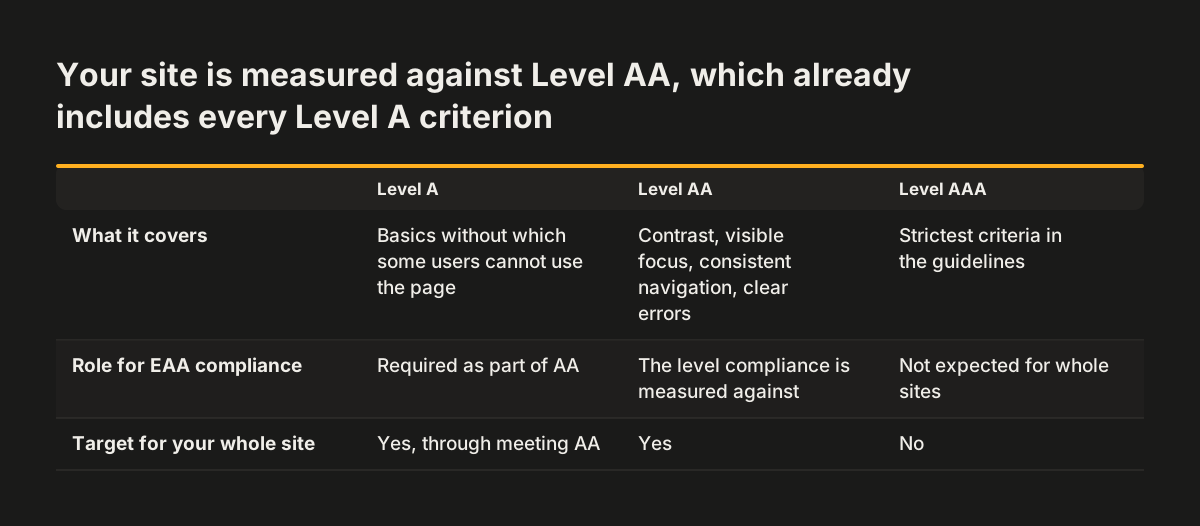
Each guideline contains testable success criteria at three levels:
- Level A: the basics, without which some users cannot use the page at all.
- Level AA: the level most laws refer to, covering contrast, visible focus, consistent navigation and clear error handling.
- Level AAA: the strictest level, which is not expected for whole sites.
Meeting AA means meeting every A criterion and every AA criterion. It is not a score out of 100. A site that passes most checks but traps the keyboard in its menu still fails.
WCAG 2.1 added criteria for mobile use and for people with low vision. Content must reflow on a small screen without horizontal scrolling. Text spacing must be adjustable without breaking the layout. Controls must work in both portrait and landscape orientation.
The EAA compliance checklist from wcag.com maps these criteria to the Act. You can work through it criterion by criterion.
WCAG does not dictate design. A site can be distinctive and still conform. The standard constrains how things are built, not how they look.
Common WCAG 2.1 AA failures on existing business websites
The WCAG 2.1 AA failures that recur on existing business websites are rarely exotic. They come from templates, themes and plugins built without accessibility in mind, then copied across every page. These are the ones to look for first:
- Missing or useless alt text: images with no text alternative, or alt text that just repeats the file name.
- Low colour contrast: pale grey text on white, or white text over a busy photograph.
- Form fields without labels: placeholder text that disappears when the user starts typing, leaving no lasting label.
- No visible focus: the outline that shows keyboard users where they are has been removed for appearance.
- Keyboard traps: menus, sliders, chat widgets or cookie banners that a keyboard user cannot open, close or leave.
- Headings out of order: headings picked for their font size rather than their place in the page structure.
- Vague link text: rows of "read more" links that mean nothing out of context.
- Errors shown only in colour: a red border with no text explaining what went wrong.
- Video without captions: product or explainer videos that deaf users cannot follow.
- Layouts that break at zoom: text that overlaps or disappears when a user enlarges the page.
Most of these failures sit in shared components, not in individual pages. One faulty header template produces the same failure on every URL. That fact shapes the choice between patching and redesigning, covered later in this guide.
Worked example: checking a contact form for WCAG 2.1 AA
A contact form is the best place to start checking WCAG 2.1 AA on a business website. It is where enquiries arrive, and it combines labels, focus, errors and buttons on one page. Follow these steps on your own form:
- Put the mouse aside. Press Tab from the top of the page. Check that you can reach the menu, then the form, without getting stuck.
- Watch the focus. At every Tab press, you should see clearly which link or field is active.
- Read the labels. Click into each field. A visible label should stay in place after you start typing.
- Submit the form empty. The error message should say in words which field is wrong and how to fix it, not just turn a border red.
- Zoom to 200 percent. The form should still fit the screen and stay readable.
- Listen to it. Turn on the screen reader built into your computer or phone. Check that each field is announced by its label, not as "edit text".
When Svennis audits an existing site, we tab through the main enquiry path with the mouse put aside before running any automated scanner, because a menu or cookie banner that traps the keyboard blocks every page behind it.
If the form passes, check where its submissions go next. An accessible form that drops enquiries into an unread inbox still loses customers. Our post on connecting website forms to a CRM covers that second half.
An EAA website checklist: what to test and how
An EAA website checklist should combine automated scanning with manual testing. Scanners catch missing alt attributes and contrast problems quickly. They cannot tell whether alt text is meaningful or whether an error message makes sense. The table below sets out each check, how to run it and what a pass looks like.
| Check | How to test | What a pass looks like |
|---|---|---|
| Keyboard access | Tab through menu, forms and checkout without a mouse | Every control reachable and usable, no traps |
| Visible focus | Watch the screen while tabbing | A clear outline or highlight on the active element |
| Text alternatives | Inspect images, icons and logos | Meaningful alt text, or empty alt on decorative images |
| Colour contrast | Run a contrast checker on text and buttons | All text meets the WCAG 2.1 AA minimum |
| Form labels and errors | Submit forms empty and with wrong data | Persistent labels, and errors explained in words |
| Headings and structure | View the heading outline with a browser extension | One main heading, then a logical order beneath it |
| Zoom and reflow | Zoom to 200 percent, then view on a phone | No overlap, no horizontal scrolling for text |
| Media | Play every video and audio clip | Captions on video, transcripts where needed |
| Accessibility statement | Look for it in the footer | Published, current, with a contact route for problems |
Run the checklist on your templates first: homepage, a content page, a product or service page, the contact form and the checkout. Each template stands in for every page built from it.
Patching versus redesigning a website for accessibility
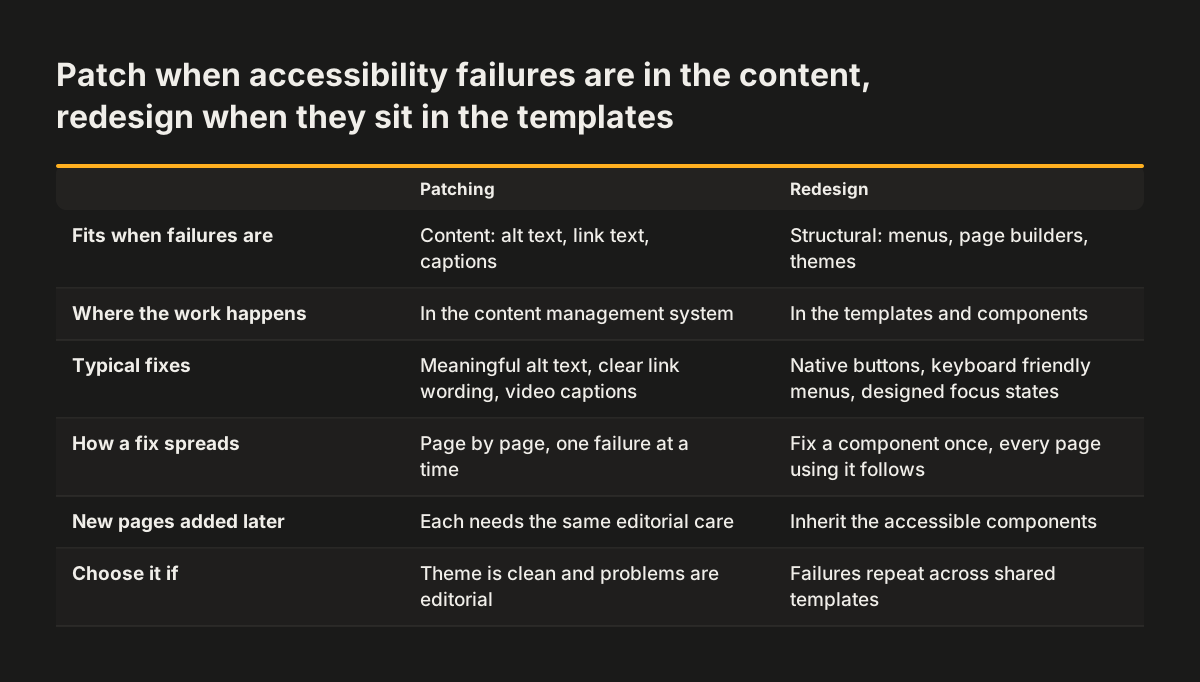
Patching a website for accessibility means fixing failures one by one on the existing build. A redesign means rebuilding the templates so the failures cannot recur. Both are legitimate. The right choice depends on where the failures sit.
Patching works when the site is sound and the failures are content problems. Missing alt text, vague link text and uncaptioned videos can be fixed in the content management system without touching code. If your theme is clean and your problems are editorial, patch.
Patching struggles when the failures are structural. A menu built from generic elements with click handlers cannot be made keyboard friendly by adding attributes here and there. A page builder that outputs headings by font size will keep producing broken structure every time an editor adds a page. Every new page then brings the failure back.
Some consultancies sell accessibility overlays, which are scripts that sit on top of a site and try to adjust it in the browser. An overlay does not change the underlying markup that screen readers and keyboards rely on. The faulty template is still there. Treat an overlay as no substitute for fixing the build.
If you are weighing the two routes more broadly, our guide on when a website redesign pays off and when to fix the site in place sets out the decision in full.
How a website redesign builds accessibility into the templates
A website redesign done properly builds accessibility into the components every page is made from. Fix the button once, and every button on the site is fixed. That is the difference between a redesign and a patch.
Design stage
Accessibility starts before any code. The colour palette is checked for contrast before it is approved. Focus states are designed, not left to the browser. Layouts are tested at phone width and at high zoom while they are still drawings.
Build stage
Developers use native HTML elements for buttons, links and form fields, because assistive technology already understands them. Heading levels follow page structure. Menus, dialogs and cookie banners are built to work by keyboard from the start. Clean, lean markup also tends to load faster. Our post on what to fix first on a slow website covers the speed side.
Content stage
The content management system is set up so editors cannot skip the essentials. Alt text fields are required on images. Heading options follow the page outline rather than font sizes. Structure of this kind also helps machines read your pages, as our post on how AI assistants read your website explains.
Testing then repeats the checklist on the finished templates, with a keyboard and a screen reader, before launch. The cost depends on page count and content volume. Our guide on what drives website redesign cost breaks this down.
What the European Accessibility Act means for a UK company
The European Accessibility Act is not part of UK law, but it still reaches UK companies that sell to EU consumers. The test is the customer, not the seller. A Manchester retailer shipping to customers in Ireland or Germany is in scope for those sales. The names.co.uk explainer on UK websites and the EAA works through this point for UK site owners.
UK businesses also have duties at home. The Equality Act 2010 requires service providers to make reasonable adjustments for disabled people, and that includes websites. GOV.UK guidance on meeting equality and accessibility regulations sets out what that means in practice.
Public sector bodies have a stricter regime. The Public Sector Bodies Accessibility Regulations 2018 require them to meet a published standard and to publish an accessibility statement. Current GOV.UK guidance on accessibility requirements for public sector websites sets that standard at WCAG 2.2 AA. In the EU, public sector sites fall under a separate law, the Web Accessibility Directive, rather than the EAA.
The practical upshot for a UK company is simple. Build to WCAG 2.2 AA and publish the accessibility information the Act asks for, and you cover the technical core of the EAA for your EU customers. Check the national rules in the countries you sell to as well. WCAG 2.2 AA also matches the level the UK public sector already works to.
Next steps to make your website meet the EAA
The next step towards EAA compliance is to find out where your website stands today. You do not need a full audit to start. Work through these steps in order:
- Decide whether you are in scope. List the products and services you sell to EU consumers. Check whether the microenterprise exemption applies.
- Run the keyboard test. Tab through your homepage, contact form and checkout without a mouse. Note every place you get stuck.
- Work through the checklist table above on one page of each template type.
- Sort the failures. Mark each one as content, which you can fix in the CMS, or structure, which lives in the templates.
- Choose the route. Mostly content failures point to patching. Mostly structural failures point to a rebuild.
- Publish an accessibility statement that describes the current state honestly and gives a contact route for problems.
If your list is dominated by structural failures, a rebuild on accessible templates is usually the durable fix. Our website redesign service explains how we approach a rebuild and what a project involves.
Sources
- European Accessibility Act (EAA) - European Commission
- European Accessibility Act (EAA) compliance checklist - wcag.com
- European Accessibility Act (EAA) - AbilityNet
- Do UK Websites Need to Comply with the European Accessibility Act? - names.co.uk
- EU Web Accessibility Directive - Siteimprove
- A guide to navigating the European Accessibility Act for online retailers, service providers and platforms - Bird & Bird
- Understanding accessibility requirements for public sector bodies - GOV.UK
- Meet the requirements of equality and accessibility regulations - GOV.UK