

Careers page and job posting structured data that Google can read
How to structure a careers page, mark up each vacancy with valid JobPosting data and retire filled roles so they can appear in Google's job search.
- Nº
- 27
- Published
- Read
- 12 min
- Category
- Notes
- Written by
- Revylio
Careers page and job posting structured data: what Google needs to list a vacancy
A careers page reaches Google's job listings only when every vacancy has its own page with valid job posting structured data that matches the live ad. JobPosting structured data is code added to a vacancy page so search engines can read the role's title, location, employer and dates directly. Without it, Google can only guess whether a page is about a job.
Structured data is a standard format for describing a page and classifying its content. Most sites write it as JSON-LD, a structured data format based on JSON. Google prefers JSON-LD, although it also supports microdata.
The markup makes a vacancy eligible for Google's job search. It does not guarantee a listing, and the schema itself is not a ranking factor. What it does demand is discipline. The markup has to stay in step with the visible ad from the day you publish the role to the day you close it.
This guide shows how to structure the careers section, which properties to fill in, how to tell Google about changes and how to retire filled roles without a penalty.
Google for Jobs is a search feature, not a job board you post to
Google for Jobs is the job search experience inside Google Search, a feature that shows job listings directly in the results. It is not a classic job board. You cannot post a job into Google directly. You publish the vacancy on your own website, mark it up, and Google reads it from there.
Google for Jobs launched in 2017 as a free search tool. It lets job seekers find postings from job boards and company websites in one place. According to the HR software vendor 360HR, no direct payment to Google is needed for organic visibility, but technical quality and indexability are essential.
Some job boards, such as ZipRecruiter, already take part in Google's job search. A role you advertise on such a board needs no extra markup from you. A role on your own careers page does, because nobody else will add the JobPosting data for you.
The reason to bother is reach. Many candidates begin their search on Google. For employers, 360HR notes that Google for Jobs can increase visibility and reduce dependence on individual job boards. Your own careers page then becomes a source in its own right, not only a destination that board listings link back to.
Careers page structure: one listing page and one URL per vacancy
A careers section that Google can read separates the overview from the vacancies. Google's guidance allows only one job posting on a page with JobPosting markup. It also says not to put structured data on pages built to list jobs, such as search results pages.
That gives a simple structure in three layers:
- A careers overview page that introduces the company and links to each open role, with no JobPosting markup.
- One vacancy page per role, at its own dedicated URL, carrying the JobPosting markup for that role only.
- An application route that a candidate can reach from the vacancy page.
Every vacancy page must be open to crawlers and people. Users must be able to read the job description without logging in, and the posting may not ask them for payment. A community reply on Google's Search Central forum adds that Google may not display structured data for pages behind a login.
Write each vacancy page so a candidate understands the role in the first lines. The same discipline that goes into service pages that bring enquiries applies here: plain title, clear location, what the person will do. Your overview page can also link to your case study pages, so candidates see the work behind the vacancy.
JobPosting properties to fill in for every vacancy
The JobPosting properties tell Google what each part of the ad means. Google's JobPosting documentation on Search Central is the reference. 360HR sums up the basics as clear information on title, location, employer, employment type, publication date and application URL. The table maps those to the properties you will meet most often.
| Property | What it holds | What to watch |
|---|---|---|
title | The job title | Vague titles are a common reason ads underperform |
description | The full ad text | Google reads <p>, <ul> and <li>, but not <h1>, <strong> or <em> |
datePosted | The publication date | Must match the date shown on the page |
validThrough | The closing date | Set to a past date if an expired page stays live |
hiringOrganization | The company name | The company, not the specific site that is hiring |
jobLocation | Where the work happens | Inconsistent location data is a common issue |
employmentType | Contract type | One of eight values, such as FULL_TIME, PART_TIME or TEMPORARY |
baseSalary | Pay | unitText takes HOUR, DAY, WEEK, MONTH or YEAR, case-sensitive |
directApply | Whether candidates can apply from the ad's URL | Use only if the application is short with no needless steps |
For the logo, Google uses the one shown in your company's Knowledge Graph card. Logo images for JobPosting need a width-to-height ratio between 0.75 and 2.5. Education and experience properties, such as credentialCategory and monthsOfExperience, are in beta. Google says it is still deciding how to use them, so you may not see any effect yet.
Worked example: JSON-LD markup for one vacancy page
A JSON-LD block sits inside a <script> tag in the vacancy page's HTML. The block below marks up one full-time, office-based role for a placeholder employer called Example Ltd. Paste it into the vacancy page itself, never the careers overview. In the WordPress block editor, add an HTML block and paste the code into it.
On Wix, use the custom code feature. On Webflow, add a custom embed block to the job listing template.
<script type="application/ld+json">
{
  "@context": "https://schema.org/",
  "@type": "JobPosting",
  "title": "Customer Support Coordinator",
  "description": "<p>Answer customer calls.</p><p>Training given.</p>",
  "datePosted": "2026-11-02",
  "validThrough": "2026-12-04T23:59",
  "employmentType": "FULL_TIME",
  "hiringOrganization": {
    "@type": "Organization",
    "name": "Example Ltd"
  },
  "jobLocation": {
    "@type": "Place",
    "address": {
      "@type": "PostalAddress",
      "streetAddress": "1 Example Street",
      "addressLocality": "Leeds",
      "postalCode": "LS1 1AA",
      "addressCountry": "GB"
    }
  },
  "directApply": true
}
</script>
Change every value to match the visible ad. The information in the schema must match what a reader sees on the page. Put the same text in description as in the ad body, using only paragraph and list tags. Set datePosted and validThrough to the real dates, and pick the right employmentType.
Replace the company name and address. Set directApply to false if applying takes more than a short process from this URL.
If you would rather not edit code, plugins such as WP Job Manager, Rank Math or Yoast SEO can add the markup on WordPress. On Shopify, an app or the theme files can do the same job.
Remote and hybrid roles: when to use TELECOMMUTE
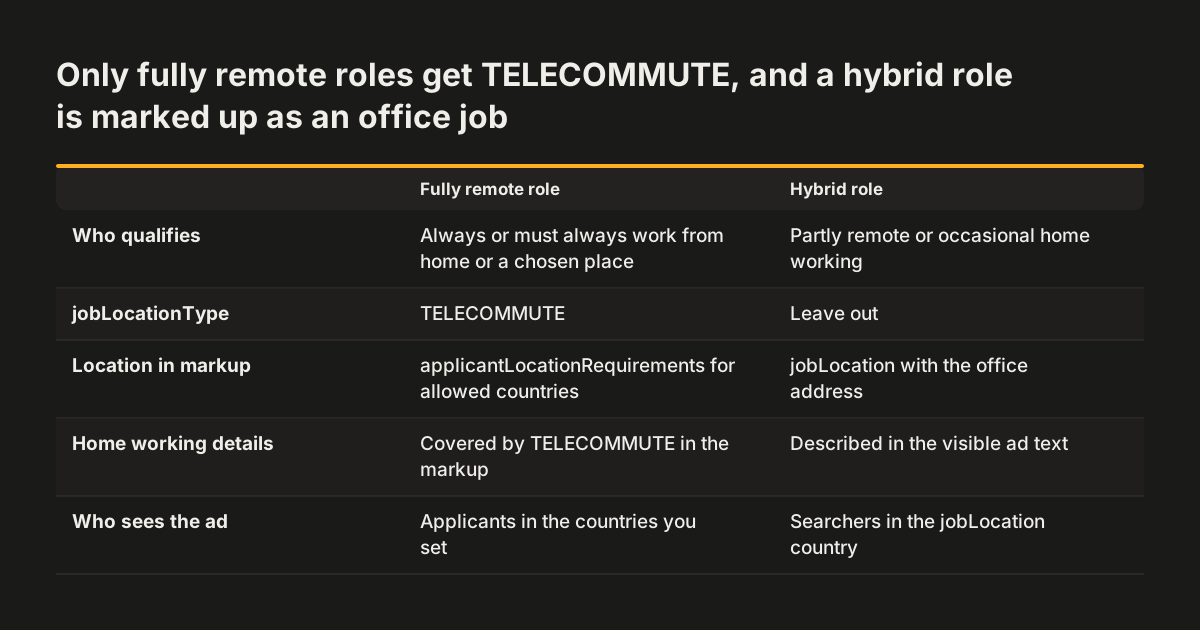
Set jobLocationType to TELECOMMUTE only for fully remote roles. Google's definition covers jobs where the employee can always, or must always, work from home or a place of their choice. Positions that are only partly remote, or that allow occasional home working, do not qualify.
A hybrid role is therefore marked up as an office job. Give it a jobLocation with the office address and describe the home working arrangement in the visible ad text.
For a fully remote role, add applicantLocationRequirements to say where applicants may be based. Google's documentation lists three properties that help it understand work-from-home jobs, and this is the one employers most often leave out. If a remote job has no applicantLocationRequirements, Google shows the ad to everyone in the country given in jobLocation.
That default matters if you can only employ people in certain countries. Setting the requirement keeps the ad in front of candidates you can actually hire. It also saves your team from sifting applications from places your contracts do not cover.
Telling Google about new and changed vacancies: Indexing API and sitemaps
Google's documentation recommends the Indexing API, rather than a sitemap, for job posting URLs. The Indexing API is a way to notify Google that a URL is new or that its content has changed. It signals Googlebot to crawl the page sooner.
The guidance has shifted in emphasis. Search Engine Journal reported that Google updated its job posting guidance to say: keep Google informed by using the Indexing API and submitting a sitemap. Google also removed every mention of pinging it about sitemap changes with a GET request.
The sitemap still does real work. Google reads the whole sitemap and recrawls pages whose lastmod time is later than their last crawl. Keep lastmod accurate on each vacancy URL, and update it whenever you edit or close a role.
Treat the Indexing API with care. The job board consultant Nick LeRoy writes that the default quota of 200 requests does not actually get postings into Google's index. In his account, requests go to a sandbox until Google manually approves access, and Google removed the application link for that approval. He also notes that Google has not officially declared the API dead. For most company careers pages, an accurate sitemap is the dependable baseline.
Retiring filled and expired vacancies without a penalty
Expired vacancies must leave Google's job search promptly. Google does not allow job postings whose application deadline has passed. Policy violations can lead to a manual action and to removal of your postings from Google's job results. A manual action is a penalty applied after a human review finds a breach of Google's policies.
You have three ways to retire a role:
| Option | What Google sees | When it fits |
|---|---|---|
| Delete the vacancy page | A 404 or 410 status code | The role is closed and the page has no further use |
Keep the page, set validThrough to a past date | An expired posting | You want the page live, for example with a "role filled" notice |
| Remove the JobPosting markup | An ordinary page, no longer a job | The page stays for other reasons and the role is filled |
A post on businessjobs.io warns that stale roles without an accurate validThrough date, or without proper 404 or 410 responses once closed, run a higher risk of manual actions. Whichever option you choose, update the sitemap lastmod so Google recrawls the page.
At Svennis we generate the JSON-LD from the same fields that fill the visible vacancy, including the closing date, so editing the ad updates the markup too. The failure we see most at clients is a filled role left online with its old markup because nobody owned the step of closing it.
Common JobPosting mistakes and how to test for them
Most careers pages that fail to appear in Google's job search fail for a small set of reasons. 360HR lists blocked pages, missing structured data, vague titles, inconsistent location data and expired jobs that remain online. The other guides in this post add a few more:
- JobPosting markup on the careers overview or a job search results page.
- Several roles marked up on one page instead of one role per URL.
- Markup that says something different from the visible ad.
- A typo in the JSON-LD, which can stop a search engine reading it at all.
TELECOMMUTEon a hybrid role.- The schema used for content that is not a job.
Test each vacancy page with Google's Rich Results Test before you publish it. Then open the page and use your browser's View Page Source option to confirm the JSON-LD is in the source code. Treat any preview from a test tool as a rough guide; one guide calls Google's preview not very accurate.
A clean test is not the end of the story. In one Search Central Community thread, a site owner said the test showed accurate data. After two weeks, Google Jobs still did not show the posting. A reply pointed out that even correct markup can take time to appear, because the page may not be indexed yet.
Careers pages for employers in the UK and the EU
Google's job search is not limited to English-speaking markets. The software vendor SNIP notes that Google started job search in Germany and some other countries after it had launched in some English-speaking countries. A careers page in the UK or anywhere in the EU can use the same JobPosting markup described here.
Cross-border hiring is where the markup needs most thought. If you hire remotely in some countries but not others, set applicantLocationRequirements on each fully remote role. Without it, Google shows the ad to everyone in the jobLocation country, and nowhere else.
For employers working across several EU languages, ESCO is worth knowing. ESCO is the European classification of Skills, Competences and Occupations, a multilingual dictionary that connects 13,500 skills and 3,000 occupations across the EU. It can help you choose consistent job titles and skill names across language versions of the same vacancy.
The cost model is also the same everywhere. There is no direct payment to Google for organic job listings. What you invest in is a careers section that is crawlable, open without login, accurately marked up and kept current. That makes it a website task as much as an HR one.
Next steps for your careers page
You can audit and fix a careers section in an afternoon if it has only a few open roles. Work through the steps in this order:
- List every open role and check that each has its own URL, readable without login.
- Remove any JobPosting markup from the careers overview and any job search pages.
- Add JSON-LD to each vacancy page, using the worked example as a template.
- Check that title, dates, location and description match the visible ad word for word.
- Run each page through the Rich Results Test and View Page Source.
- Confirm your sitemap lists each vacancy with an accurate
lastmod. - Decide who closes a role, and which of the three retirement options your site uses.
The last step is the one that slips. Put the closing of the markup on the same checklist as telling unsuccessful candidates, so it happens on the same day.
JobPosting is one type of structured data among many. If you want to see how the same principle helps machines read the rest of your site, read our guide on how AI assistants read your website and what to fix first.
Sources
- Google Search Central: Job posting structured data
- redShift Recruiting: Job Posting Schema and Google for Jobs
- Google Search Central Community: Data Structured Job Posting
- Search Engine Journal: GoogleClarifies Job Posting Structured Data Guidance
- businessjobs.io: Automate Job Posting with JobPosting Structured Data
- Akshay Bhopani (Medium): Job posting schema
- SNIP: SEO for Job Postings and how to post a Job on Google
- What is Job Posting Schema?
- 360HR: Google for Jobs: visibility, structured data and common mistakes