Adding video without slowing the site down: placeholders, captions and consent
How to add product or explainer video to a business website with a click-to-load placeholder, a light poster, captions and consent before any player loads.
- Nº
- 26
- Published
- Read
- 13 min
- Category
- Notes
- Written by
- Revylio
Adding video without slowing the site: the short answer
Adding video without slowing the site comes down to four habits. Show a light poster image instead of the player. Load the player only when the visitor clicks. Caption and transcribe every video.
The fourth habit is to ask for consent before any third-party player loads. Until someone chooses to watch, the page carries one image and nothing more.
A click-to-load placeholder is a still image with a play button that stands in for the video player. The real player, and everything it brings with it, loads only after the visitor presses play. Visitors who never watch never download the player at all.
This guide covers each of those habits for product and explainer video on a business website:
- how the placeholder and poster image work
- whether to host the file yourself or embed it from a platform
- how Google finds and indexes video on your page
- the captions, transcripts and description that accessibility requires
- consent for third-party players
It ends with a worked example, a checklist table and practical next steps.
Click-to-load placeholders keep video players off the first page load
A click-to-load placeholder keeps the video player out of the page until a visitor asks for it. The visitor sees a poster image with a play button. Pressing the button swaps the image for the player, which then starts loading its files.
The reason this matters is simple. An embedded player is a small website inside your website. It brings its own scripts, styles and requests to the platform that hosts it. If you place the player directly in the page, every visitor pays for all of that, including the many who scroll past without watching.
Third-party code on a page can visibly harm speed scores. On a public vendor forum, one site owner reported that adding a chat widget's code to his site made the load time and Core Web Vitals in Google Search Console turn "very bad". He added that this hurt his SEO and rankings. The widget was not a video player, but the lesson carries over: code you embed from another company is code your visitors must download.
A placeholder also helps with two other subjects in this guide. Because nothing from the video platform loads before the click, nothing from it can set cookies before the click either. And because the poster is an ordinary image, you control its size, format and alternative text, as you would for any other picture on the page.
Poster images: a light, stable picture that stands in for the video
A poster image is the still picture that represents a video before it plays. In a click-to-load setup, the poster is the placeholder, so it should be as light as you can make it while staying sharp.
Google Search Central lists the thumbnail formats it accepts for video: BMP, GIF, JPEG, PNG, WebP, SVG and AVIF. For a light poster, WebP and AVIF are the usual choices on a modern site. The same page sets a minimum thumbnail size of 60x30 pixels and says larger is preferred.
Two further rules from Google affect how you build the poster:
- Keep it mostly opaque. At least 80% of the thumbnail's pixels must have an alpha (transparency) value greater than 250.
- Keep its URL stable. Google warns that if a video's thumbnail URL changes too often, it may not be able to index the video.
The second rule catches sites that rename images on every deployment or serve them through a tool that adds a changing string to each file name. Pick one permanent address for each poster and leave it alone. If you are moving to a new site, carry those addresses across. Our guide to website migration without losing Google traffic covers how to keep URLs in place during a move.
Choose a frame that tells the visitor what the video shows, such as the product in use. Then give the poster alternative text that says what the video is about, so a screen reader user knows what the play button will start.
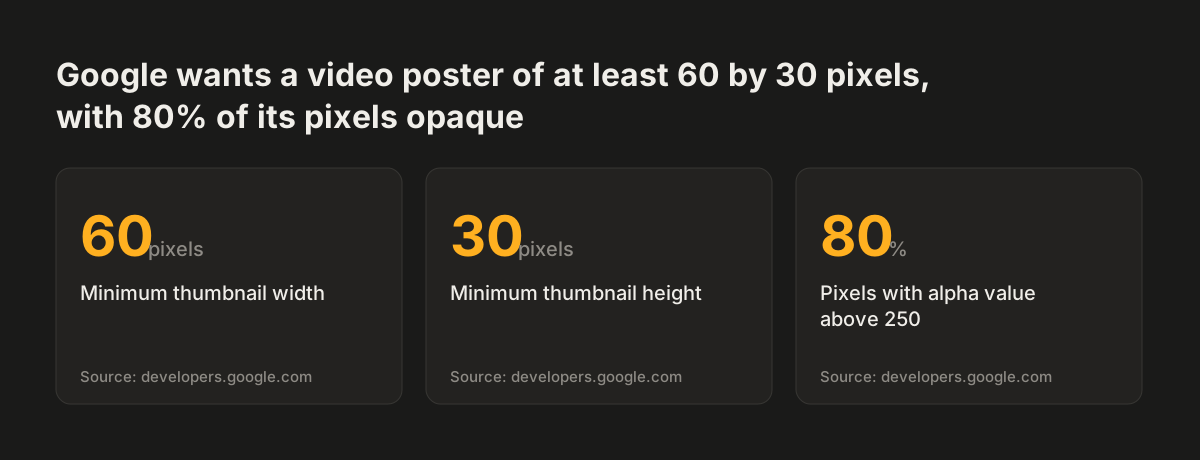
Source: developers.google.com
Self-hosted video files versus embedded platform players
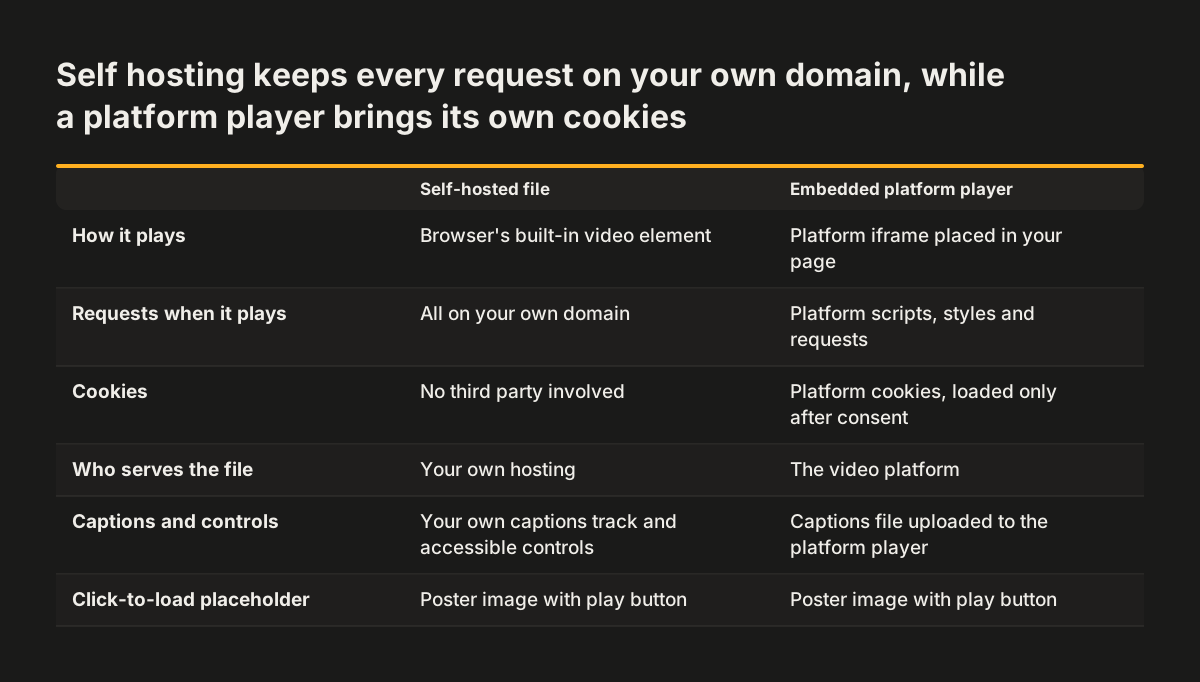
You can either upload the video file to your own site or embed a player from a platform such as YouTube, Vimeo or Facebook. Both can work with a click-to-load placeholder. They differ in what loads, who sets cookies and where Google shows the result.
A self-hosted video is a file on your own server, played with the browser's built-in <video> element. Google lists 21 video file types it supports, including MP4 and WebM. Self-hosting keeps every request on your own domain, so no third party is involved when the video plays. The cost is that your hosting must serve the file well, and you must supply your own captions track and accessible player controls.
An embedded platform player is an <iframe> that loads the platform's own player. The platform handles the streaming. In return, the platform's code and cookies arrive with the player. Google notes that it may index an embedded video both on your page and on the platform's equivalent page, so your page may compete with the platform for the same search result.
Whichever route you take, the W3C Web Accessibility Initiative gives one firm rule: use a media player that supports accessibility. That means controls that work by keyboard, that a screen reader can announce, and that can display captions. Test the player you choose against that rule before you commit to it.
How Google finds and indexes video on a business web page
Google can find videos referenced by a <video>, <embed>, <iframe> or <object> element. With a click-to-load placeholder, that element may not exist until a visitor clicks. So give Google the video's details another way. Google supports three: structured data, video sitemaps and the Open Graph protocol.
Watch pages and page quality
Google defines a watch page as a page whose main purpose is to show a single video. A service page with a demo video further down is not a watch page. That is fine; the video still supports the page. Google states that the indexed watch page must be performing well in Search before its video can be considered for indexing. A weak page does not get its video into video results.
Technical rules that block indexing
Google lists several mistakes that stop a video being indexed:
- loading the video through a fragment identifier (the part of a URL after
#), which Google Search doesn't generally support - using a data URL for the video file, which Google does not support
- a thumbnail URL that changes too often
- an expiration date in the past, after which the video drops out of video results
Key moments for explainer videos
Key moments let searchers jump between segments of a video, like chapters in a book. Google says it will prioritise key moments you set through structured data or the YouTube description. If you do not want key moments shown at all, Google says to use the nosnippet meta tag.
Captions, transcripts and audio description that accessible video requires
Accessible video needs captions, a transcript and description of visual information. The W3C Web Accessibility Initiative sets out each one, and its guidance includes requirements from the Web Content Accessibility Guidelines (WCAG) standard.
- Captions, also called subtitles, are a text version of the speech and non-speech audio information. They serve people who are Deaf and hard-of-hearing.
- A transcript is a text version of the speech and non-speech audio, placed on the page or linked from it.
- A descriptive transcript also includes a text description of the visual information. W3C states that descriptive transcripts are required to give video content to people who are both Deaf and blind.
- Description of visual information, also called audio description, gives people who cannot see the video adequately the visual information they need.
Description covers more than people think. W3C lists charts, graphs and on-screen text such as speaker names, titles and e-mail addresses. A product demo that shows a price table or a contact address on screen needs that information described.
The cheapest moment to handle all of this is before filming. W3C advises planning for accessibility from the very start, to save time and money. It adds that integrated description, where the speaker says aloud what matters on screen, is easier and better for accessibility, and it must go into the script before filming. W3C also describes sign language for Deaf people whose native language is sign, which suits some public-facing services.
Consent before any third-party video player loads
An embedded player from a video platform should not load until the visitor has agreed to the cookies it brings. The click-to-load placeholder makes this practical, because the player only arrives when the visitor asks for it.
Meta's own cookie notice on Facebook lists cookies from other companies, used for ads and for features such as maps and videos, as optional rather than essential. Under UK rules, a player's tracking cookies on your site need the visitor's agreement whatever the platform calls them.
There are two common ways to handle consent on the placeholder:
- Through your consent banner. The player loads on click only if the visitor has already accepted the relevant cookie category.
- On the placeholder itself. A short line under the play button names the platform and explains that pressing play will let it set cookies and collect information about the visit. Use the platform's privacy mode where it has one. The visitor can still read the transcript without loading anything.
The second approach keeps the video usable for visitors who rejected cookies earlier. The transcript matters here too. It gives the content to anyone who prefers not to load the player at all.
At Svennis, when we check a modernised site with video, we open the page in a fresh browser, refuse all optional cookies and watch the network requests. If anything from the video platform loads before a click, we treat it as a defect and fix it before launch.
Worked example: a product demo video on a service page
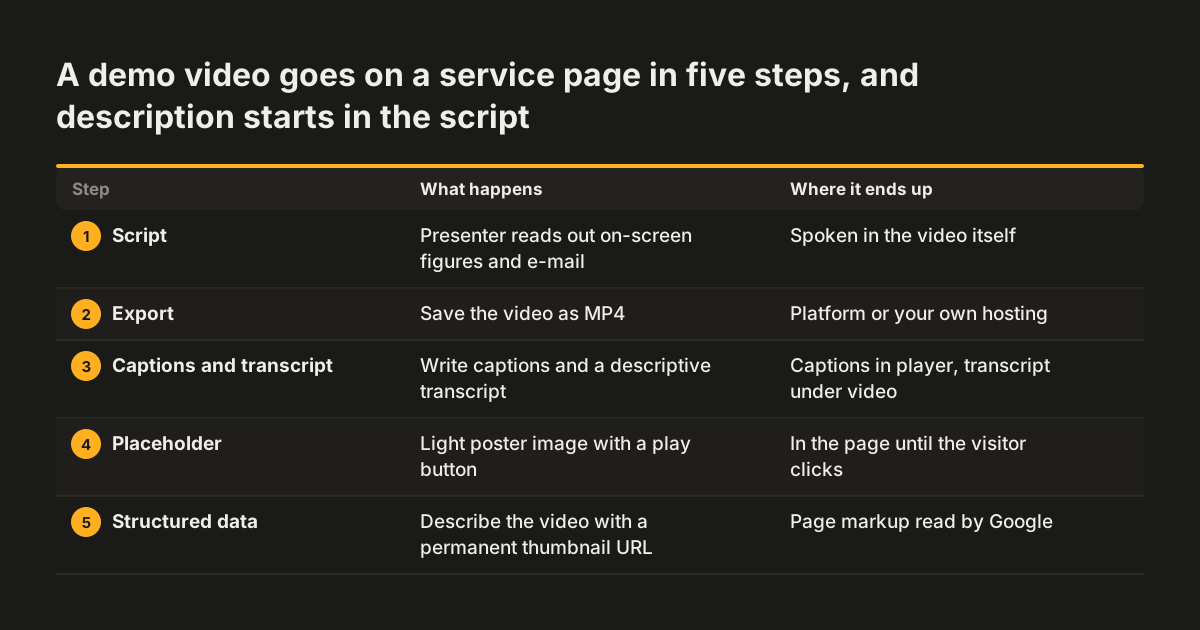
Take a firm that sells a scheduling product and wants a two-minute demo on its main service page. Here is how the video goes on the page without slowing it, step by step.
- Script with description built in. The presenter says aloud what each screen shows, including any figures and the contact e-mail that appear on screen. This is the integrated description W3C recommends writing before filming.
- Export as MP4. MP4 is on Google's list of supported video file types. The firm uploads it to its chosen platform, or to its own hosting.
- Write captions and a descriptive transcript. The captions file goes into the player. The descriptive transcript goes on the page, under the video, behind a "Read the transcript" heading.
- Make a poster. One frame showing the product's calendar view, saved as WebP, well above the 60x30 pixel minimum and fully opaque. It gets a permanent URL and alternative text such as "Demo of booking a meeting in the scheduling product".
- Build the placeholder. The poster sits where the video goes, with a play button and a line naming the platform and saying that pressing play lets it set cookies. The player loads only on click.
- Describe the video for Google. Structured data on the page gives Google the video's title, description, thumbnail URL and key moments such as "Creating a booking" and "Sending reminders".
- Test. Refuse cookies, reload, and confirm no platform requests appear before the click. Then play the video using only the keyboard and check that captions switch on.
The service page now loads one image where the video sits. Visitors who watch get a captioned, keyboard-friendly player, and visitors who do not watch download nothing extra.
Checklist table: video decisions for speed, accessibility, search and consent
The table below sets each part of a video embed against the four things it affects. Use it as a review list before a video goes live, or when you audit video already on your site.
| Element | Speed | Accessibility | Search | Consent |
|---|---|---|---|---|
| Click-to-load placeholder | Player loads only on click | Play button must work by keyboard | Supply details through structured data or a video sitemap | Nothing from the platform loads before the click |
| Poster image | WebP or AVIF, sized for its slot | Alternative text naming the video's subject | At least 60x30 pixels, 80% of pixels opaque, stable URL | Served from your own domain |
| Player | Self-hosted or embedded, loaded late | A media player that supports accessibility | Referenced by a video or iframe element once loaded | Platform player only after agreement |
| Captions | A small text track | Speech and non-speech audio in text | Not covered by the sources | None |
| Descriptive transcript | Plain text on the page | Required for people who are Deaf and blind | Text on the page itself | Readable without loading the player |
| Structured data | A few lines of markup | None | Title, thumbnail and key moments | None |
If a row has a gap on your current site, that row is your next fix. The placeholder and the transcript are often the first rows to fix.
What adding video means for a UK or EU business website
For a business in the UK or the EU, video on the website touches three areas at once: accessibility, privacy and search. Treating them together is cheaper than fixing each one after a complaint or a ranking drop.
On accessibility, WCAG is the standard most accessibility obligations point to. The W3C media guidance is where the WCAG requirements for audio and video are explained in plain terms. If your accessibility work is measured against WCAG, plan for captions, transcripts and description from the start. They belong in your video budget, not as an extra after launch.
On privacy, UK rules on cookies (PECR) mean a video platform's cookies cannot be set until the visitor has been told about them and chosen to proceed. Your consent setup should therefore hold the player back until the visitor agrees. Your cookie information should also name the video platform you use.
On search, Google treats your page and the platform's page as separate places where the same video can appear. If the video matters to your sales, help Google understand it on your own page. Give that page the structured data, the stable poster URL and the transcript.
None of this needs a large team. It needs a placeholder pattern built once into your site templates. It also needs a short routine for every new video: script, captions, transcript, poster, structured data, test.
Next steps for adding video to your website
Start with the video already on your site. Open each page with video in a fresh browser window, refuse optional cookies and check whether the player or any platform request loads before you click. Note every page where it does.
Then work through these steps in order:
- List every video, its page, its host and whether it has captions and a transcript.
- Replace directly embedded players with a click-to-load placeholder and a light, stable poster image.
- Add captions and a descriptive transcript to each video, starting with the ones on your highest-traffic pages.
- Add structured data describing each important video, with a permanent thumbnail URL.
- For new videos, write the description of visual information into the script before filming, as W3C advises.
If your templates cannot support a placeholder pattern, or every fix means editing pages by hand, the problem sits in the site's build rather than in the videos. That is the point where a rebuild is worth weighing up. Our website redesign service builds video handling, consent and accessibility into the templates, so each new video follows the same pattern.