Website maintenance plan after launch and what it should cover
What a website maintenance plan after launch should cover: updates, tested backups, uptime, content checks, and re-checks for accessibility, speed and consent.
- Nº
- 42
- Published
- Read
- 11 min
- Category
- Notes
- Written by
- Revylio
A website maintenance plan after launch covers updates, backups and drift checks
A website maintenance plan after launch needs four routine jobs and four drift checks. The routine jobs are core and plugin updates, tested backups, uptime watching, and content and link checks. The drift checks re-test WCAG 2.1 AA accessibility, page speed, search and AI-answer readiness, and cookie consent whenever your content changes.
A website maintenance plan is a written routine that says who keeps a live site working. It also says which checks run each month and each year, and what happens when something breaks. Usually a signed agreement with your web team backs it up.
Three things often get mixed up here, and they need separating:
- Hosting is the server your site runs on.
- Maintenance is proactive upkeep that happens on a schedule, whether or not you ask for it.
- Support is reactive help after you report a problem.
A hosting contract alone does not mean anyone is maintaining the site. This guide covers the routine, a worked WordPress example, a checklist table and the clauses an agreement should contain.
Why a redesigned website starts drifting on launch day
A redesigned website starts drifting on launch day because the site keeps changing after the designers leave. Your team adds pages. Software vendors release updates. Third-party services change how they behave. None of these changes is large, but together they move the site away from the state that was tested before launch.
Drift rarely shows up as one dramatic failure. A new blog post goes live with an image that has no alt text. A plugin update changes how a form submits. A marketing tag added for a campaign slows the home page.
A new embedded video sets cookies before the visitor has agreed. Each change is small, and nobody notices until an enquiry goes missing or a visitor complains.
Software updates cause their own drift. The WordPress documentation warns that an upgrade affects every file in the main installation. Any changes someone made directly to those core files are lost. A site that was hand-patched during the build can lose those patches at the next update.
A maintenance plan exists to catch this drift on a schedule rather than by accident. Updates and backups keep the site running. The drift checks keep it accessible, fast, findable and compliant, which were the reasons you redesigned it in the first place.
Core, plugin and theme updates: what the WordPress documentation says
Core, plugin and theme updates need a person checking them, even when part of the process runs on its own. The WordPress guide to updating describes two update methods. The one-click update works for most sites. The manual update process is the fallback when one-click fails, or when you prefer to work by hand.
Since WordPress 3.7, most sites apply minor and security updates automatically in the background. Major feature releases are different. Someone still has to click "Update Now" for those, so a major release can wait for weeks on a site that nobody logs into.
The update order matters, and there is no single correct one. The documentation says some plugins need updating before WordPress, while others need a newer WordPress version to work properly. Your maintainer has to read the release notes for the plugins you actually use and decide the order site by site.
Common update failures
The documentation names three problems that a maintainer should know how to handle:
- When one-click updates fail, the cause is probably file permissions on the server.
- On some shared hosting, it is a security risk for the web server user rather than an FTP user to own the files.
- A failed update can leave the site stuck in maintenance mode until someone removes the
.maintenancefile from the WordPress root directory.
Backups count only when you have tested a restore
A backup counts only when someone has restored it and seen the site work. The WordPress handbook on backups makes the key point plainly. A typical WordPress site has two parts, the database and the files, and you need both to restore it fully.
The two parts hold different things. The database holds your posts, comments and much of the data the site generates. The files hold WordPress core, themes, plugins, uploaded images, wp-config.php and .htaccess. In a typical setup, a backup of the files does not include the database, because the database lives in a separate system.
The handbook gives concrete settings for the routine:
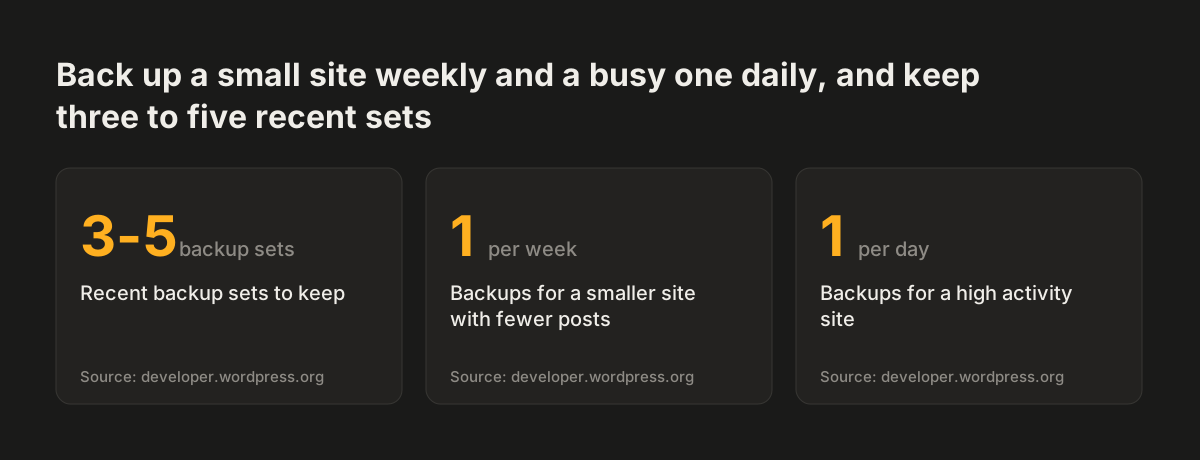
- Back up weekly for smaller sites with few posts, and daily for high-activity sites.
- Always back up before an upgrade.
- Keep at least three to five recent backups, stored in different locations.
- Back up the database first, then the files. Restore the files first, then the database.
- Run a manual backup now and then to prove the automated process works.
Do not rely on your host's server backups alone. Most hosts back up the whole server, but the handbook notes that requesting a copy of your site takes time.
At Svennis we treat a backup as unproven until we have restored it to a separate copy of the site and loaded real pages from it. When a restore fails, the usual cause is a set that held the files but not the matching database, or the other way round.
Source: developer.wordpress.org
Worked example: updating a WordPress site safely, step by step
A safe WordPress update follows a fixed sequence, built from the two WordPress documentation pages in this guide. This example assumes a small business site with a contact form, a handful of plugins and a major WordPress release waiting.
- Take a backup set. Export the database first, then copy the files, so the two match in time. If you export the database in phpMyAdmin, tick "IF NOT EXISTS". This prevents errors during a restore if the tables already exist.
- Store the set away from the server. Keep it alongside at least two earlier sets, in different locations.
- Read the plugin notes. Decide whether each plugin should update before or after WordPress itself.
- Run the update. Use the one-click update in the dashboard. WordPress puts the site into maintenance mode and removes it when the update completes. To show visitors your own message during that window, place a
maintenance.phpfile in thewp-contentdirectory. - If you update manually, protect your content. Do not delete the existing
wp-contentfolder, because your themes and plugins live there. - Finish the database step. If WordPress detects that a database upgrade is needed, it gives you a link to
upgrade.php. Follow it. - Check the pages that earn money. Load the home page, a service page and the contact page. Then send a real test enquiry through the form.
Step seven is the one most people skip. A form can look perfect and still fail to send. Our post on why a contact form should not end in an inbox explains how to make submissions easier to check.
Re-checking accessibility, speed, search and consent as content changes
Drift checks re-test the qualities the redesign was built for, because new content can quietly undo them. Updates and backups keep the software alive. They do not tell you whether last month's new pages still meet the standard the launched site met.
Accessibility to WCAG 2.1 AA
New content is where accessibility usually slips: images without alt text, skipped heading levels, links that say only "here". Re-test the pages added since the last check. Train editors with our guide to writing accessible content that stays accessible after launch. If your site publishes an accessibility statement, review it at the same time. Our annotated accessibility statement example shows what each part should say.
Page speed
Speed drifts as images, scripts and tracking tags pile up. Measure the same key pages each month so you compare like with like. When a page slows down, our post on what to fix first on a slow website sets out the order of work.
Search and AI-answer readiness
Search engines and AI answer tools read your pages as text. Check that new pages keep one clear topic, descriptive headings and plain statements of fact. Also check that old URLs still resolve instead of returning errors.
Cookie consent
Every new embed, form or tag can set cookies or send data to a third party. Check that no non-essential cookie, script or tag runs before the visitor consents, unless it falls under a PECR exception. Then check that the banner names every new third party.
Monthly and yearly website maintenance checklist in one table
The website maintenance checklist below splits the work by frequency, so you can see at a glance what a plan should include. The backup and update settings come from the WordPress documentation. The other rows follow from the drift checks above.
| Task | How often | What a pass looks like |
|---|---|---|
| Database and file backup set | Weekly for small sites, daily for busy ones, and before every update | Matching database and files, three to five sets, stored in different locations |
| Core, plugin and theme updates | Monthly, plus major releases as they appear | Updated in a deliberate order, then key pages and forms tested |
| Uptime and error watch | Continuously, reviewed monthly | No unexplained outages; no site stuck in maintenance mode |
| Content and link check | Monthly | No broken internal links; test enquiry received |
| Accessibility re-test of new pages | Monthly | New pages meet WCAG 2.1 AA like the launched pages |
| Speed check on key pages | Monthly | No page noticeably slower than at launch |
| Consent check of new embeds and tags | Monthly, and whenever a tag is added | No non-essential cookie, script or tag runs before the visitor consents, unless it falls under a PECR exception, and the banner names every new third party |
| Full restore test | At least yearly | Site restored to a separate copy and working |
| Yearly review | Yearly | Plugins still needed, accessibility statement current, domain and certificate renewals in hand |
A plan that covers only the first three rows is a hosting and update service. It is not a maintenance plan after launch.
What a website maintenance agreement should state in writing
A website maintenance agreement should turn the checklist into commitments you can check later. If a task is not written down, assume nobody is doing it. Ask for an agreement that states each of the following:
- Scope. Which tasks from the checklist are included, and how often each one runs.
- Backups. How often they run, how many sets are kept, where they are stored, and how often a restore is tested.
- Updates. Who approves major releases, and whether updates are tried on a separate copy of the site first.
- Response. How fast someone acts when the site is down, and how you report a problem.
- Drift checks. Whether accessibility, speed, search and consent re-checks are included or charged separately.
- Exclusions. Redesigns, new features and new content are normally separate work, so the agreement should say so.
- Reporting. A short monthly note of what was updated, what was checked and what was found.
- Access and ownership. That you own the domain, hosting account and backups, and keep admin access.
- Data protection. Your maintainer can see the personal data on your site and in your backups. The agreement therefore needs the processor terms UK GDPR requires, including where backups are stored and what happens to them when the contract ends.
The access point protects you if you change provider. A maintainer who holds the only copy of your backups and the only admin login controls your site. When you compare quotes, compare these clauses rather than the headline monthly fee.
What a website maintenance plan means for a UK business
For a UK business, a website maintenance plan works best as part of normal running costs, not something bought after a crisis. Most small firms do not have a developer on staff. That makes clear ownership more important than any single technical setting.
Start with the assets you must control yourself. Your company should own the domain and the hosting account in its own name, with renewal reminders going to a shared inbox that someone reads. Backups held only by a former freelancer are a common gap when a provider relationship ends.
Consent and accessibility need the same ownership. Someone in your business should know what your cookie banner promises visitors. They should also know whether your accessibility statement still describes the site as it is today. A maintainer can run the checks, but you are the one publishing these pages.
Finally, decide who in your team signs off content. Many drift problems start with a well-meant page added in a hurry. A named editor who follows a short checklist prevents most of them, at almost no cost.
Next steps: set up your website maintenance routine this month
You can set up a website maintenance routine this month in five steps, whether you run the site yourself or hand it to a provider:
- List who owns the domain, the hosting account, the admin logins and the backups. Fix any gap first.
- Take a full backup set, database first and then files. Restore it to a separate copy to prove it works.
- Copy the checklist table into your calendar, with a named person against each row.
- Send a test enquiry through every form and confirm it arrives.
- Re-test the pages you have added since launch for accessibility, speed and consent.
If those checks show the site has drifted a long way, decide whether to fix it in place or start again. Our guide on when a website redesign pays off and when to fix the site in place helps you weigh that up. If a rebuild is the answer, our website redesign service includes the accessibility, speed and consent work that a maintenance plan then keeps in shape.