Website images: formats, sizes and alt text for fast, accessible business sites
How to choose image formats, serve the right size to each screen and write alt text that helps screen reader users and Google Images understand your pictures.
- Nº
- 32
- Published
- Read
- 13 min
- Category
- Notes
- Written by
- Revylio
Website images: formats, sizes and alt text in short
Website images: formats, sizes and alt text come down to three decisions. Use a format Google Search can index, such as JPEG, PNG, WebP, SVG or AVIF. Serve a file sized for each screen with srcset and sizes, and always keep a src fallback. Give every image an alt attribute that states its information or function, or leave it empty if the image is purely decorative.
Alt text is the value of the alt attribute in an HTML image element. It is called "alt" because it is an alternative to viewing the image, as the American Foundation for the Blind explains in its guide to image descriptions. Screen readers deliver it to blind users as synthetic speech or refreshable braille. Sighted users see it when an image fails to load.
These decisions matter for speed as well as access. Google's image guidance notes that images are often the largest contributor to overall page size. That can make pages slow and expensive to load. The same alt text that helps a screen reader user also helps search engines index the image, according to the W3C.
The rest of this guide takes each decision in turn. It closes with a checklist you can run on your own site or hand to whoever builds it.
Image formats Google Search supports, and how they differ
Google Search supports seven image formats in the src attribute of an img element: BMP, GIF, JPEG, PNG, WebP, SVG and AVIF. If your images use one of these, Google can index them. Any other format is a risk you do not need to take.
These formats fall into two families. The web.dev Learn Images course groups them like this:
- Raster images store a grid of pixels. JPEG, GIF, PNG and WebP are raster formats.
- Vector images store shapes as instructions. SVG is the vector format used on the web.
JPEG is the most common image format on the web. AVIF (AV1 Image File Format) is an encoding based on the open source AV1 video codec. Both are raster formats in everyday use for photographs.
For a business site, the practical split is simple. Photographs of people, premises and products are raster images. Logos, icons and simple diagrams are often drawn as vectors, which suits SVG. If you are unsure which format a file uses, check the file extension in your media library before you upload a replacement.
One format choice affects search directly. Google cannot index an image that has no URL it can follow. A Data URI places the image inline as a Base64-encoded string in the src attribute instead of linking a file. Keep images you want found in Google Images as normal files with their own URLs.
Image sizes: serving the right file to each screen
Responsive images let the browser download a file that fits the screen instead of one large file for everyone. Images are often the largest part of a page's weight. Sending a phone the same file as a wide desktop monitor wastes data and time.
HTML gives you two tools for this. The web.dev course describes srcset and sizes as attributes that tell the browser which image sources exist. They also tell it how each source will be used on the page. The browser then picks the most suitable file. The picture element is a container that groups different versions of the same image. It lets the browser choose by device capabilities such as pixel density and screen size.
Google adds one rule you should not skip. Some browsers and crawlers do not understand picture or srcset. Google therefore recommends that you always specify a fallback URL in the src attribute. Google can still find that src image when the img sits inside a picture element.
Let your tools generate the sizes
You rarely need to write these attributes by hand. The web.dev course notes that CMSs such as WordPress, and other site generators, can make responsive images easier to use. Image CDNs are content delivery networks built to serve images. They can also transform and optimise an image's contents on the fly. Ask your developer which of the two your site uses, and whether every template outputs a src fallback.
Where images sit in the code decides whether Google finds them
Google indexes images placed in the src attribute of an img element, and it does not index CSS images. A CSS image is a picture set as a background in the stylesheet rather than placed in the page's HTML. If your hero photo or product shots are CSS backgrounds, they will not appear in Google Images.
That gives you a simple rule. Use CSS backgrounds only for decoration you would not want in search results anyway. Put every photograph that carries meaning in an img element with its own alt text.
Image sitemaps and CDNs
An image sitemap lists the images on your pages for Google. Unlike regular sitemaps, it can include URLs from other domains in its image:loc elements, according to Google's image SEO best practices. That means images hosted on a CDN can still be listed against your own pages.
The image Google shows beside your page
Google picks the preview image for a search result automatically, using several sources on the page. You can signal a preference in three ways: the schema.org primaryImageOfPage property, an image property on the page's main entity, or the og:image meta tag. For a badge and rich result in Google Images, the image attribute is a required field. If you already use structured data for local SEO on a small business site, add the image there too.
Alt text serves screen reader users first and search engines second
Alt text exists so that people who cannot see an image get the same information or function from it. The W3C Images Tutorial states the rule directly: images must have text alternatives that describe the information or function they represent. This ensures that people with various disabilities can use them.
Without alt text, the experience breaks quickly. When a screen reader meets an image with no alt attribute, it speaks the file name by default, according to Primer's guidance. A blind user then hears something like a camera's numbered file name in the middle of your sales copy. A screen reader user writing for UsableNet adds that some screen readers ignore such images completely or announce only "image" or "graphic".
Search benefits follow from doing the accessible thing well. Google uses alt text together with computer vision and the page contents to understand what an image shows. Google's own definition calls alt text the most important attribute for image metadata. The W3C lists search indexing as one of the benefits of accessible images.
A small point of vocabulary helps when you brief a designer or developer. People often say "alt tags". Colleen Gratzer points out this is wrong, because alt is an attribute of the img tag, not a tag of its own. Using the right term avoids confusion in tickets and audits.
Alt text by image type: a decision table
The right alt text depends on what the image does on the page, not on what file it is. The W3C tutorial says the author decides the text alternative based on the image's usage, context and content. The W3C also publishes an alt text decision tree among its alternative text resources, a short sequence of questions for choosing the right alternative.
This table summarises the W3C categories and what each needs:
| Image type | What it is | What the alt text should say |
|---|---|---|
| Informative | A photo, picture or illustration that represents a concept or information | The information shown, in a short phrase or sentence |
| Decorative | Visual decoration that adds nothing to understanding the page | Nothing: use alt="" |
| Functional | An image used as a link or button, such as a print icon | The function or destination, not the picture |
| Image of text | An image containing words that matter to the content | The same words as in the image |
| Logo | The company's name or mark | The organisation's name, without the word "logo" |
| Complex | A graph or diagram carrying data | A complete text equivalent of the data or information |
| Group | Several images that together convey one piece of information | The whole message on one image; the others treated accordingly |
| Image map | One image with several clickable areas | Overall context, plus the purpose or destination of each area |
The W3C also advises against text in images unless the image is a logo. Real text can be resized, translated and read reliably. An image of text cannot.
Writing alt text: a worked example with three images
Good alt text puts the most essential information first and drops anything a screen reader already announces. Screen readers say that an element is an image before reading its alt text. Words such as "image of", "picture of", "button" or "link" are therefore redundant, as AFB, Primer and UsableNet all note.
Take a services page with three images: a team photo, a decorative divider and the company logo linking to the home page. This HTML shows the alt text for each. Paste the pattern into your templates or compare it with what your CMS outputs:
<!-- Informative photo: subject, action, setting -->
<img src="/images/team-workshop.jpg" alt="Four people plan a site map at a whiteboard.">

<!-- Decorative divider: empty alt, screen readers skip it -->
<img src="/images/divider.svg" alt="">

<!-- Logo used as a link: say where the link goes -->
<a href="/"><img src="/images/logo.svg" alt="Example Ltd home page"></a>
Change the file paths and the alt values to match your own images. Keep the empty quotes on decorative images: Primer says every img must have an alt attribute, even when it is empty. Replace "Example Ltd" with your organisation's name.
Rules that make the text easier to hear
- Name the subject, action and setting. UsableNet's author suggests that order, while noting there is no fixed industry standard.
- Write in the present tense. "Four people eat" carries the same meaning in three words as "A group of four people are eating" does in seven.
- Keep it short. Gratzer reports suggested limits of 125 characters from some and 250 from others.
- End with a full stop so the screen reader pauses, which Gratzer calls good practice but not required.
- Spell every word correctly, or the screen reader will mispronounce it.
Context changes the right answer. AFB gives the example of one photograph that needs different alt text depending on the article it illustrates.
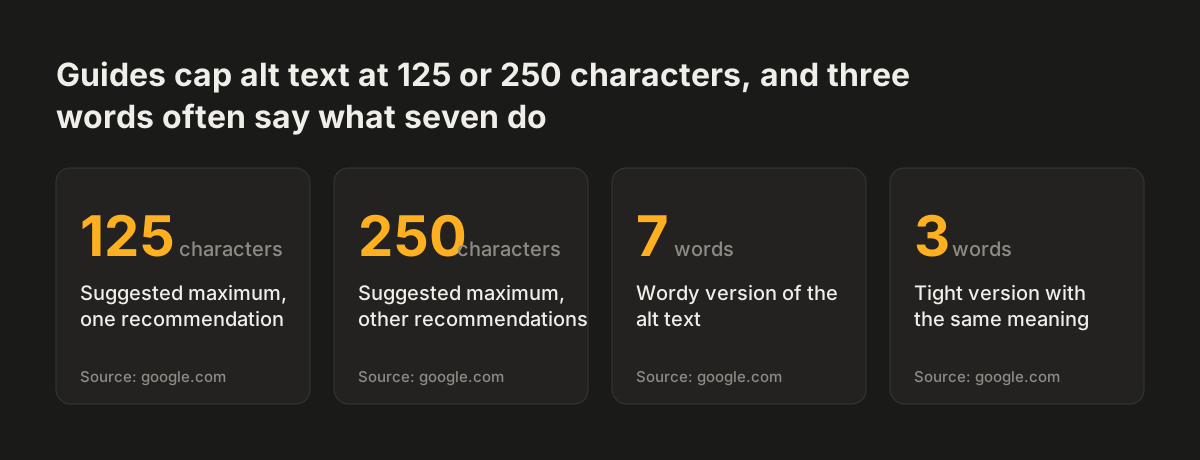
Source: google.com
Common alt text mistakes and what each one costs
Most alt text problems on business sites are not missing attributes but wrong ones. Primer's guidance is blunt: an alt attribute with wrong or useless information is no better than a missing one. These are the faults that come up most:
- Keyword stuffing. Google warns that filling alt attributes with keywords gives a poor user experience and may cause your site to be seen as spam.
- Copyright notices in the alt field. Primer notes the attribute is often misused for SEO keywords or copyright information.
- File names, full URLs and heavy punctuation. UsableNet's author advises against all three.
- The word "logo". The HTML Living Standard says a logo's alt text must not contain it, because the entity matters, not the fact that it is a logo.
- Describing a linked image instead of its destination. AFB's example: "Search the Library Catalog" beats "Photo of a collection of books".
- Line breaks inside alt text. Faulkner (2015) reports that screen readers read such text in an odd way.
- Links inside alt text. Gratzer notes that alt text cannot hold clickable hyperlinks.
At Svennis, when we redesign a site, we export every image with its current alt attribute into one list and tag each as informative, decorative or functional before any template is built. The fault we find most often is a file name or a string of keywords sitting where the description should be.
Decorative images cause their own confusion. The W3C tutorial specifies alt="". Some guides, including AFB's and Drexel University's, suggest a single space between the quotes instead. Follow the W3C, and make sure the attribute is present either way.
Captions, figures and complex images need more than a short alt
A caption is not a substitute for alt text. UsableNet's author explains that captions do not convey the visual information a sighted user gets from the image. Your caption can add context, but the alt attribute still has to describe the picture.
The figure element changes the rule for nearby text. Normally, if the page already contains a full text equivalent of an image, the alt text can be empty, according to the Web Dev Survey from Kyoto analysis of the HTML standard. Once the image is wrapped in figure with a caption, the alt text should still describe it. An empty alt with a caption, the author writes, is like a caption attached to a pitch-black rectangle.
Charts, process diagrams and infographics are complex images. The W3C asks for a complete text equivalent of the data or information they show. A short alt that names the chart, followed by the figures in a table or paragraph on the page, usually meets that need. Primer adds that a simple diagram already explained in the surrounding text can have brief alt text.
The same thinking applies to downloadable documents. If your brochures and reports carry charts, our guide on making PDFs accessible for WCAG and the European Accessibility Act covers alt text inside PDF files. For the words around your images, read our post on writing accessible content that stays accessible after launch.
Website images and the European Accessibility Act for European businesses
For a business selling in the EU, image alt text is part of meeting the accessibility standard the European Accessibility Act points to. Our post on the European Accessibility Act for business websites and WCAG 2.1 AA explains which companies the Act covers and what it asks of a site. This section covers only what it means for images.
The W3C's alternative text resources point to success criterion 1.1.1, Non-text Content. It covers images, form controls, media and sensory content. The W3C's Understanding document for 1.1.1 sets out the requirements and the techniques that meet them. When an auditor tests your images, this is the criterion they check.
Images are not a minor item in such a test. The W3C tutorial notes that images are used extensively on websites and can create major barriers when they are not accessible. It also notes that images make content easier to understand for many people, especially those with cognitive and learning disabilities. Removing images is not the answer; describing them properly is.
Other jurisdictions show how routine the requirement has become. Drexel University, for example, requires alt text on all images on its websites under the US federal Section 508 rules. For a European company, the practical step is the same: every image on your site needs a deliberate alt decision, recorded and kept up as content changes.
Image checklist for your site or redesign: next steps
You can check your current images in an afternoon with a short list. Open your main pages and your media library, and work through these steps:
- Confirm every meaningful photo sits in an
imgelement, not a CSS background. - Check each file uses a format Google Search supports: BMP, GIF, JPEG, PNG, WebP, SVG or AVIF.
- Ask whether your CMS or image CDN produces responsive sizes, and whether every image keeps a
srcfallback. - Tag each image as informative, decorative, functional, textual or complex, using the table above.
- Rewrite alt text that holds file names, keywords, copyright lines or the words "image" and "logo".
- Set the preferred preview image with
og:imageorprimaryImageOfPageon key pages. - Show your editors where the alt field is. In Sitecore, for instance, it is the Alt field under the Image section after upload to the Media Library.
If the list turns up more than a handful of fixes, write them into your next project scope. Our website brief template has room for image and accessibility requirements. When the problems run through every template, image checks belong in a full website redesign, where formats, sizes and alt text are set once in the code and stay right as you add content.
Sources
- Google Search Central: Image SEO best practices
- W3C WAI: Images Tutorial
- web.dev: Learn Images
- W3C WAI: Resources on Alternative Text for Images
- American Foundation for the Blind: Writing Effective Image Descriptions
- Primer: Alternative text for images
- Colleen Gratzer: Alt-text guide (Medium)
- Drexel University: Alt Text for Images
- Web Dev Survey from Kyoto: Mastering the art of alt text for images
- UsableNet: Image Alt Text Best Practices for Web Accessibility