Accessibility overlay widgets and their limits under the European Accessibility Act
Overlay widgets add text, contrast and keyboard tools but cannot fix your site's code. See what they do and what real accessibility fixes look like.
- Nº
- 47
- Published
- Read
- 10 min
- Category
- Notes
- Written by
- Revylio
Accessibility overlay widgets and their limits, answered in short
Accessibility overlay widgets and their limits come down to one point. A widget can add visitor tools to your site, but it cannot repair the code underneath. Unlabelled forms, missing image descriptions and controls a keyboard cannot reach all stay broken. Work towards the European Accessibility Act therefore happens in the site itself.
An accessibility overlay widget is a small, customisable tool added to a website as a plugin or add-on. It gives visitors controls to adjust the site to their needs. Typical controls change text size, swap colour combinations or read the page aloud. The appeal is clear: you install it without a complete overhaul of the site.
That appeal is also the limit. A tool that sits on top of the page leaves the page itself unchanged. If the page was built badly, the widget is a layer over a problem, not a fix for it.
This guide covers what overlay widgets offer, why they stop short of compliance, and how to read vendor promises. It then follows a WordPress example step by step. A comparison table shows the real fix behind each widget feature. The guide ends with a practical order of work for your own site.
What overlay widgets offer visitors: text size, contrast, keyboard, captions and reading aloud
Overlay widgets bundle a handful of visitor controls, and most products mix the same five. The GIS user technology news overview of accessibility widgets describes them like this:
- Text resizer: lets visitors increase or decrease the text size.
- Colour contrast adjuster: lets visitors change background and text colour combinations.
- Keyboard navigation: lets visitors move through the site using only the keyboard.
- Closed captioning: provides captions for people who are deaf or hard of hearing.
- Screen reader: software that reads the text on a page out loud.
Named products package these controls differently. UserWay includes text resizing, colour contrast adjustments and a screen reader. EqualWeb offers font scaling, keyboard navigation and screen readers, and monitors the site continuously. WP Accessibility, a WordPress plugin, adds font resizing, keyboard navigation and skip links. All in One Accessibility lists over 70 features, more than 140 languages and 9 preset profiles for users with disabilities.
Every item on these lists is a setting the visitor can change. None of them changes how your pages are built. That distinction between a visitor setting and a fix in the site decides whether a widget helps you meet accessibility rules.
Why an overlay widget cannot repair the markup underneath your pages
Markup is the HTML code that tells a browser what each part of a page is: a heading, a link, a button, a form field, an image. Assistive technology reads that markup. Assistive technology means tools such as a screen reader or voice control software that a visitor runs on their own device. It reads what the code says, not what the design intends.
An overlay widget loads on top of the finished page. It can change how the page looks, enlarge text or read text aloud. It cannot know that a grey box is meant to be a button. It cannot know what a product photo shows, or which label belongs to which form field. Those facts live in your templates and content, and only a change there fixes them.
A visitor who already uses a screen reader brings it to every site they visit. A visitor who cannot use a mouse already moves with the keyboard. For both, an overlay widget is a second layer on top of their own tools. The faults in the markup stay exactly where they were.
So the honest description of an overlay widget is a convenience layer. It can make an accessible site more comfortable for some readers. It cannot turn inaccessible markup into accessible markup.
Overlay vendor claims to read carefully before you buy
Some widget descriptions promise compliance outright. The GIS overview describes AccessiBe as a widget that uses AI to ensure your site meets WCAG and ADA standards. Read such wording as the vendor's promise about its product, not as a test result for your pages.
WCAG, the Web Content Accessibility Guidelines, is the technical standard that sets testable requirements for web content. Our guide to the European Accessibility Act works to WCAG 2.1 at level AA. Note that neither "WCAG" nor "ADA" in a sales line is the same as the European Accessibility Act. A compliance claim also means little until someone tests your actual site.
Feature counts measure the widget, not your site. Over 70 features and more than 140 languages tell you how much the overlay can do. They tell you nothing about whether your checkout form has labels or your menu works by keyboard.
Before you buy, ask the vendor these three questions and get the answers in writing:
- Which faults on my pages does the widget change in the code, and which only in appearance?
- Can the widget's own button and panel be used by keyboard and by a screen reader?
- What does your own documentation say the widget does and does not cover?
Worked example: a WordPress site with the WP Accessibility plugin installed
Take a small services company on WordPress that installs the WP Accessibility plugin. The plugin adds widgets for font resizing, keyboard navigation and skip links. A skip link is a link at the top of a page that lets a keyboard user jump past the menu to the main content. On day one, the site looks more accessible.
Now walk through the same site as a visitor would. Work through these checks in order:
- Press Tab from the top of the home page. The skip link should appear and land on the main content. If the theme has no clearly marked main content area, the link has nowhere useful to go.
- Keep pressing Tab through the menu, the contact form and any pop-ups. You should always see which element has focus, and nothing should trap you. If the theme hides the focus outline, that is a theme fix.
- Open the media library and check image descriptions. Alt text is the short description a screen reader reads in place of an image, and a person writes it for each image.
- Check that every form field has a visible label linked to it in the code, not just placeholder text.
- Use the font resizing widget, then zoom with the browser instead. If text overlaps or gets cut off, the layout needs fixing. Our post on what WCAG 2.1 AA requires of website text covers the text rules.
Every failure on that list sits in the theme or the content. The plugin did no harm, but it did not do the work either. The fixes happen in templates, the media library and the form builder.
Widget feature against the real fix: a comparison table
Each overlay widget feature has a matching fix that belongs in the site itself. Use this table to judge any widget you have or are offered. The middle column is what the widget gives a visitor. The right-hand column is what your pages still need, with or without the widget.
| Widget feature | What the visitor gets | What still needs fixing in the site |
|---|---|---|
| Text resizer | Larger or smaller text on demand | A layout that holds together when text grows or the browser zooms |
| Colour contrast adjuster | Alternative colour combinations | Default colours with enough contrast for everyone, without any setting |
| Keyboard navigation | A mode for moving through the page without a mouse | Every link, button and form control reachable and visibly focused by keyboard |
| Screen reader | Page text read aloud | Headings, labels, alt text and button names in the markup |
| Closed captioning | Captions on media | Accurate captions on each video, written or checked by a person |
| Skip links | A jump past the menu | A clearly marked main content area for the link to land on |
Read the right-hand column as your work list. Where a widget feature sits next to a fix you have already made, the widget is an optional extra. Where it sits next to a fix you have not made, the widget only hides the gap from you, not from your visitors.
What overlay widgets mean for a UK business facing the European Accessibility Act
For a UK business, an overlay widget does not change what the European Accessibility Act asks of a website. Whether the Act covers your site depends on what you sell and to whom. Our guide to the European Accessibility Act for business websites works through that question and the WCAG 2.1 AA level behind it.
The GIS overview notes that in some countries, making your website accessible is a legal requirement. Where such a duty applies, any assessment looks at the pages people actually use. A visitor stuck on an unlabelled form is stuck whether or not a widget icon sits in the corner.
An accessibility statement is a public page that says how accessible your site is, what is not yet fixed and how visitors can report problems. A widget does not write that page for you. It also cannot make an honest statement claim more than the site delivers. Our annotated accessibility statement example shows what each part should say.
In practice, a UK company selling into the EU should plan the work in this order. Fix templates and content first. Write the statement from what the site really does. Decide on a widget last, if at all.
Testing your site's accessibility with the overlay widget switched off
The only reliable way to judge a site that carries an overlay widget is to test it without the widget. Disable it, then test the pages people use most with the keyboard and a screen reader. Afterwards, switch it back on and check it does not get in the way.
At Svennis, when a client arrives with an overlay already installed, we switch it off on a staging copy before any audit. Otherwise we would be testing the widget instead of the website.
Our guide to testing website accessibility with tools and manual checks covers both automated scanners and the hand checks you run yourself. Use both. A scanner finds missing alt text quickly, but only a person can judge whether the alt text describes the image.
Record each fault against the template or content type it comes from. One fix in a template repairs every page built on it, so template fixes go further than page-by-page patches. The GIS overview also argues that search engines like Google favour accessible websites. Work on the site itself may therefore help your search visibility as a side benefit.
When keeping an overlay widget alongside real fixes still makes sense
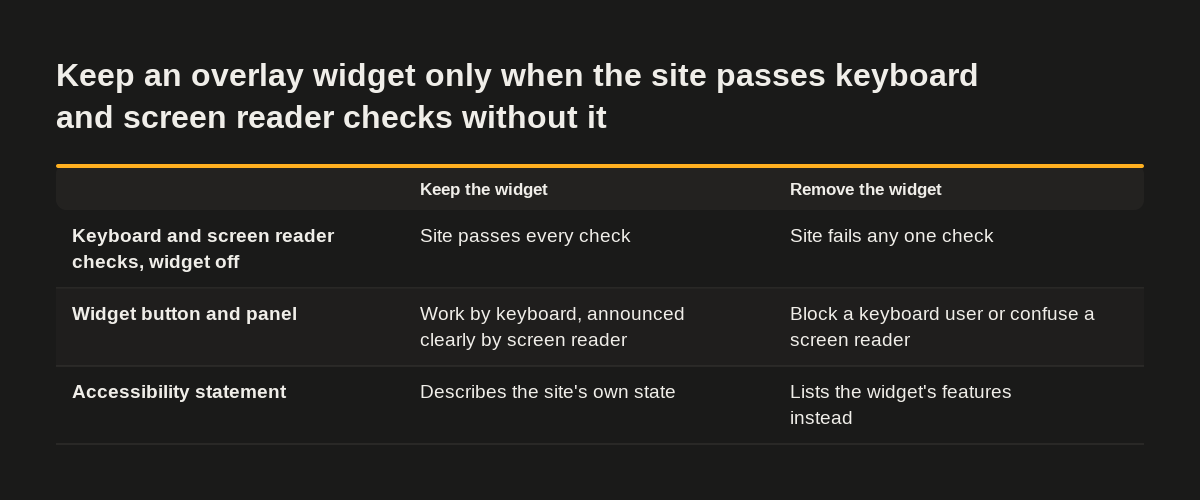
An overlay widget can stay on a site that is already accessible, as an optional extra for visitors who like its controls. A text resizer or a choice of colour combinations can suit some readers. Keep the widget only if it meets all three of these conditions:
- The site passes your keyboard and screen reader checks with the widget switched off.
- The widget's own button and panel work by keyboard and are announced clearly by a screen reader.
- Your accessibility statement describes the site's own state, not the widget's feature list.
Remove the widget if it fails any one of these. A tool that blocks a keyboard user or confuses a screen reader makes the site worse for the people it claims to help.
Also weigh what the widget loads. It is another third-party script on every page. If it stores visitor settings or contacts its vendor, it may need a place in your cookie consent setup. Our guide to Consent Mode and analytics under cookie consent explains how third-party scripts fit into that setup.
Next steps: audit the site, fix templates and content, then decide on the widget
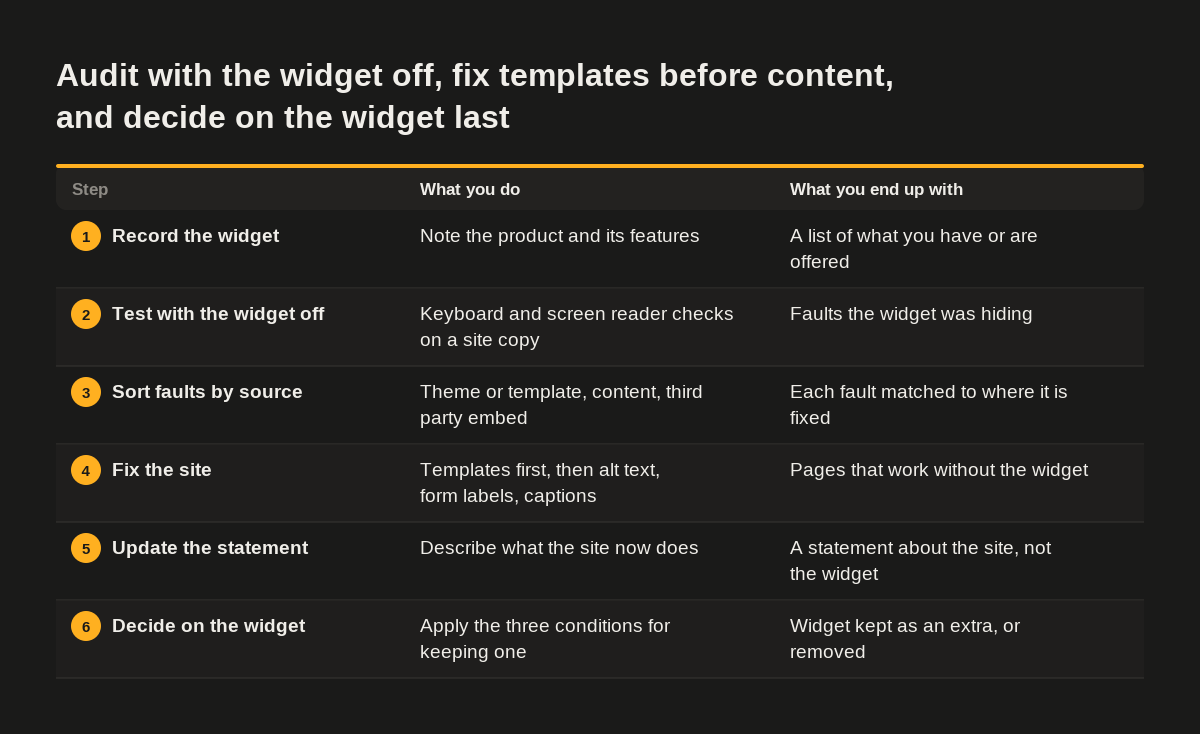
The practical order for any site with an overlay widget is audit first, fix second, decide on the widget last. Follow these steps:
- Write down which widget you have, or are being offered, and which features it includes.
- Switch it off on a copy of the site and test your key pages by keyboard and screen reader.
- Sort each fault by source: theme or template, content, or third-party embed.
- Fix templates first, then content such as alt text, form labels and captions.
- Update your accessibility statement so it describes what the site now does.
- Decide whether the widget stays, using the three conditions for keeping one.
Most sites can be fixed in place this way. Sometimes the audit shows the theme itself is the problem, with faults repeated in every template. In that case, a rebuild with accessibility in the markup from the start is often the cleaner route. Our website redesign service covers that work. At that point, any widget becomes a genuine extra rather than a cover.